 Skip to main content
06. Clients
Clients are VPN accounts assigned to a network. Each client gets a unique IP address, WireGuard keys, OpenVPN certificate, and IKEv2 credentials — and can connect via any protocol enabled on their network.
[!TIP] Automating Client Management with WHMCS: Instead of manually creating and managing clients, you can automate account provisioning, suspension, cancellation, and configuration delivery using the official PUQVPNCP WHMCS Provisioning Module.
Clients List
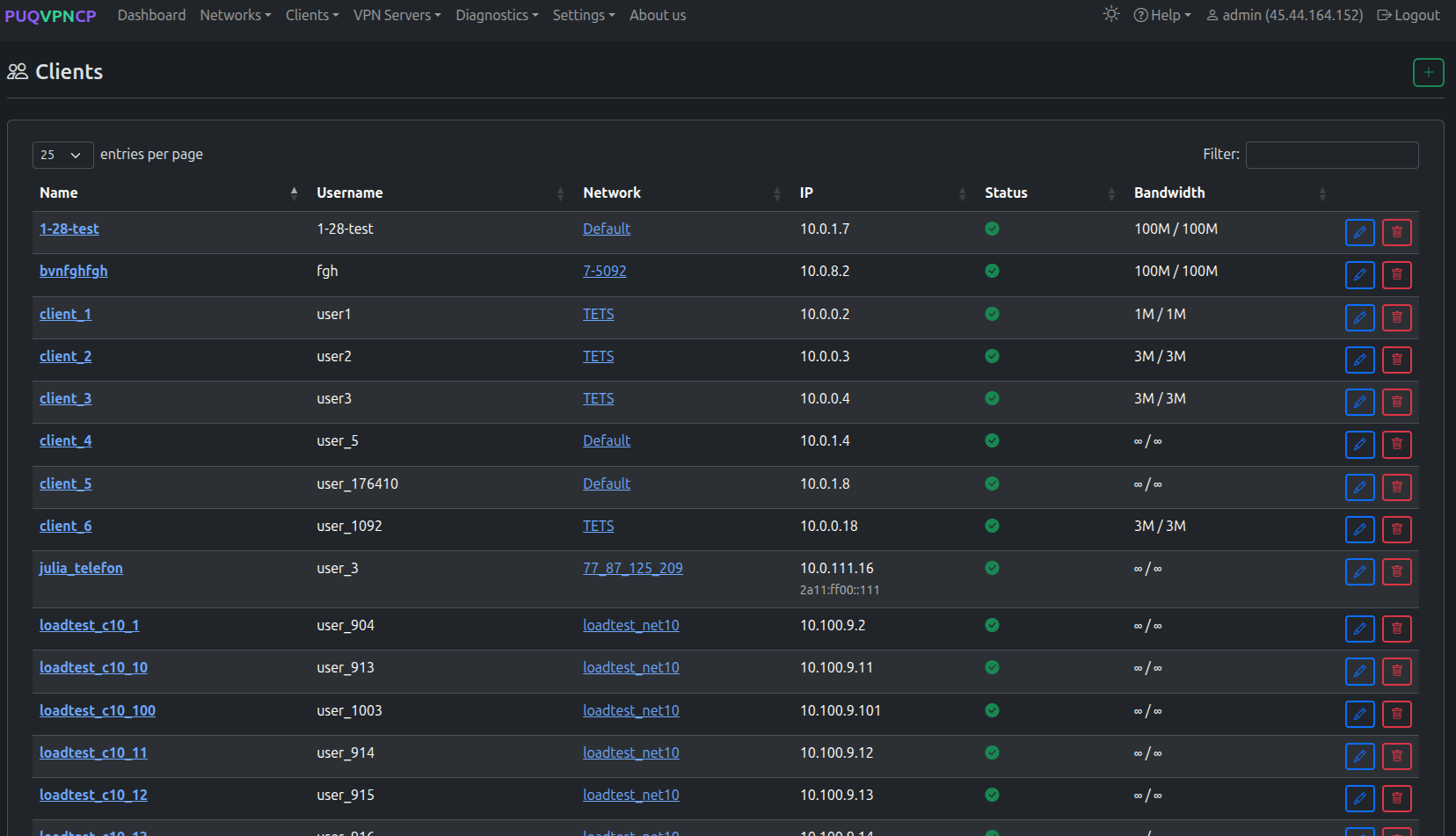 Clients list with name, username, network, IP, status, and bandwidth
| Column | Description |
|---|---|
| Name | Client identifier |
| Username | VPN login username (for OpenVPN/IKEv2) |
| Network | The network the client belongs to |
| IP | Assigned IPv4 address (and IPv6 if enabled) |
| Status | Enable/Disable |
| Bandwidth | Download / Upload limits |
Adding a Client
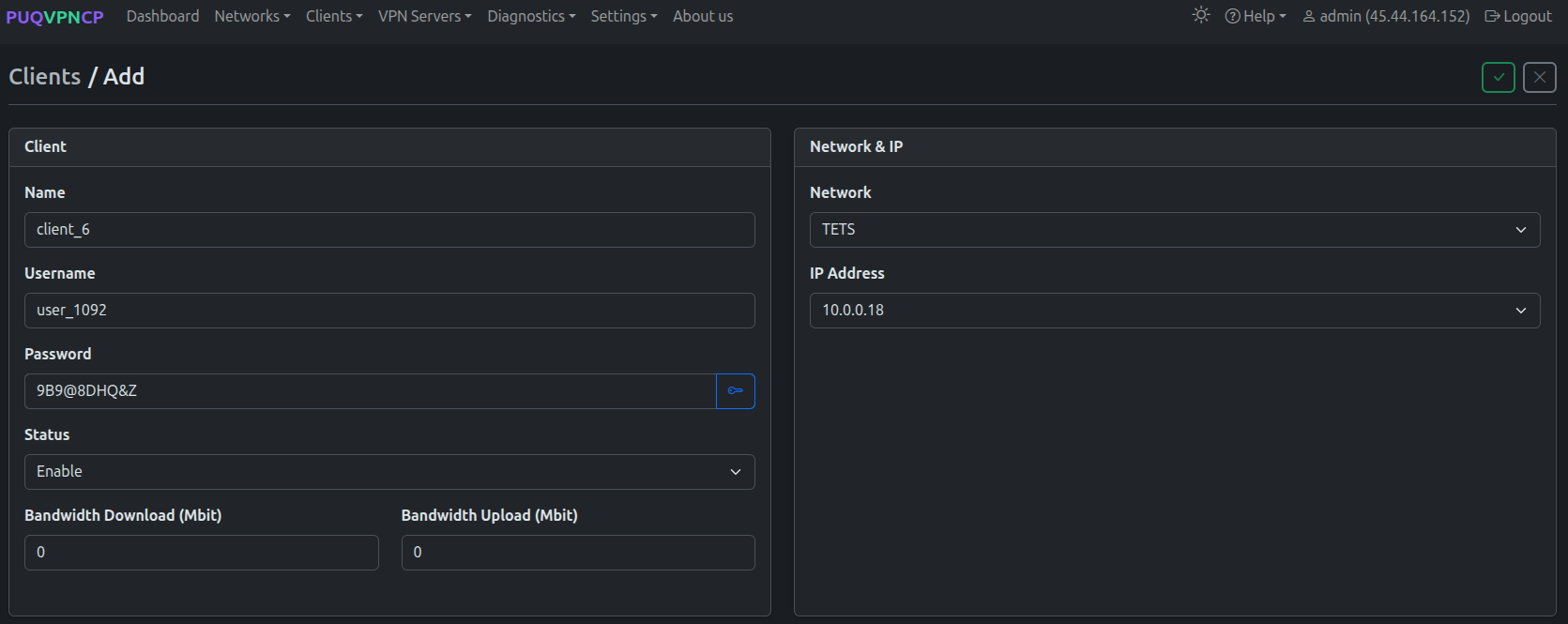 Add a new client
| Field | Description |
|---|---|
| Name | Unique client name |
| Username | Login for OpenVPN and IKEv2 authentication |
| Password | Auto-generated or custom. Click the key icon to generate. |
| Status | Enable or Disable the account |
| Bandwidth Download / Upload (Mbit) | Per-client speed limit (0 = use network default) |
| Network | Select the target network |
| IP Address | Select from available IPs in the subnet |
Editing a Client
Click edit on any client to open the tabbed editor.
Main Tab
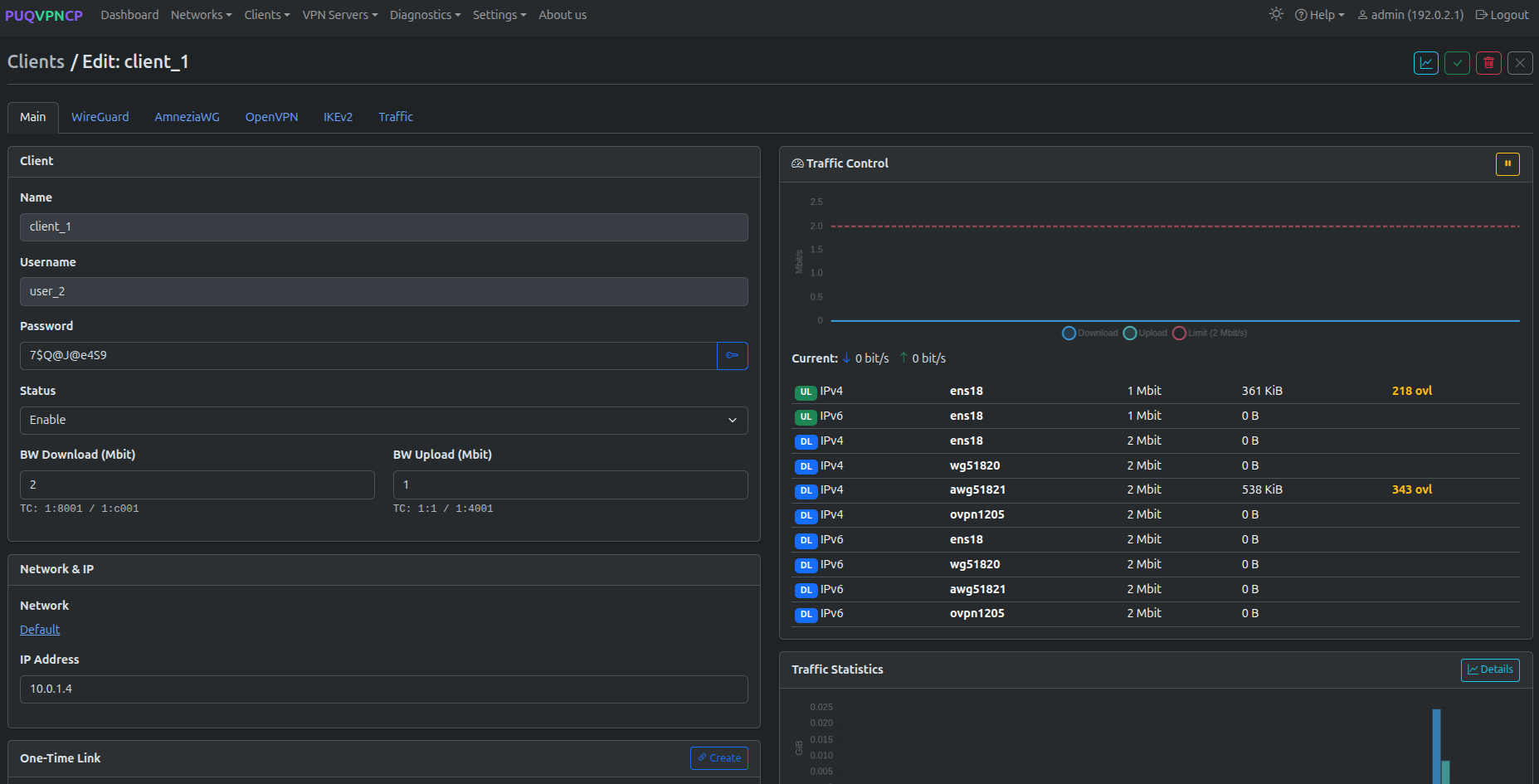 Client edit — Main tab with traffic control and statistics
The Main tab shows:
- Client settings (left) — name, username, password, status, bandwidth
- Network & IP (right) — network link and assigned IP
- Traffic Control (right) — real-time TC classes per interface and direction
- Traffic Statistics (right) — monthly chart with download/upload
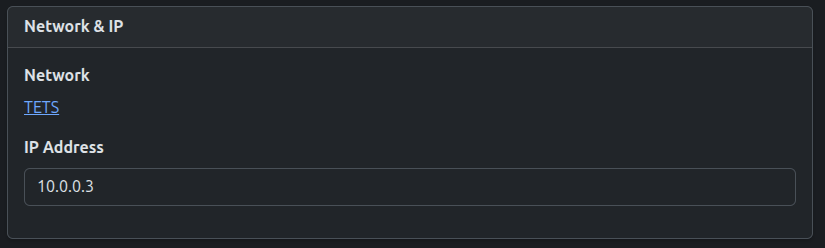 Network & IP card — shows the assigned network and IP address
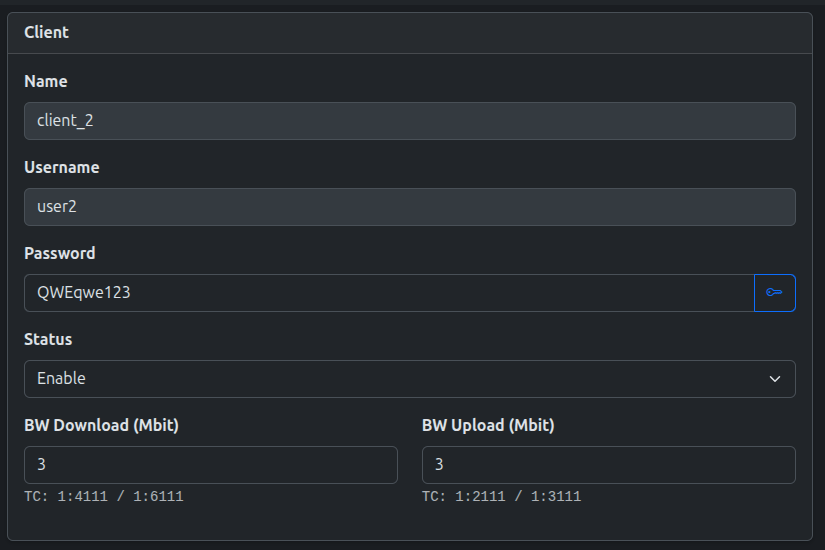 Bandwidth settings with TC class identifiers
The TC line below bandwidth fields shows the traffic control class IDs used for this client (e.g., TC: 1:4111 / 1:6111 for download IPv4/IPv6).
Traffic Control Card
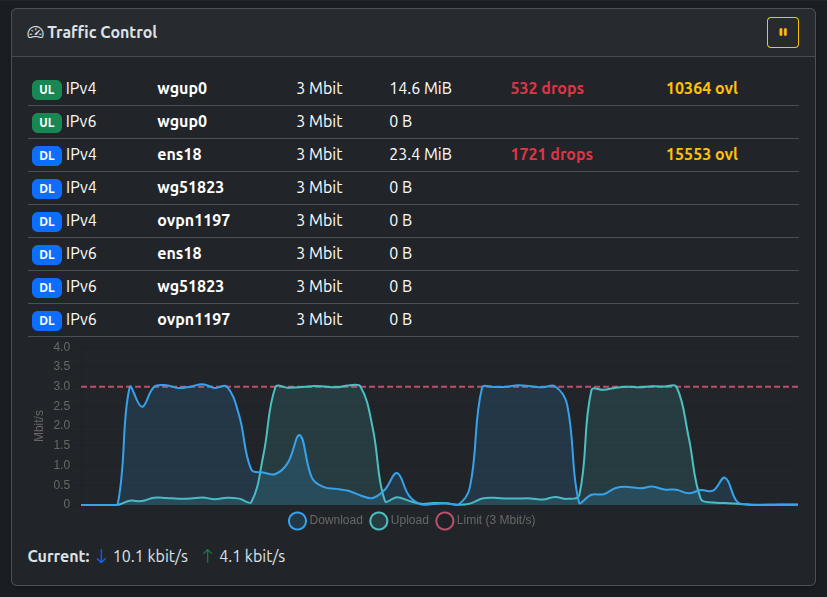 Real-time traffic control with bandwidth graph
The Traffic Control card provides:
- Per-direction stats — Upload/Download for IPv4/IPv6 on each interface
- Live bandwidth graph — real-time download, upload, and limit lines
- Current speed — current download and upload rates
- Drops and overlimits — highlighted in red/yellow when bandwidth is exceeded
Traffic Statistics
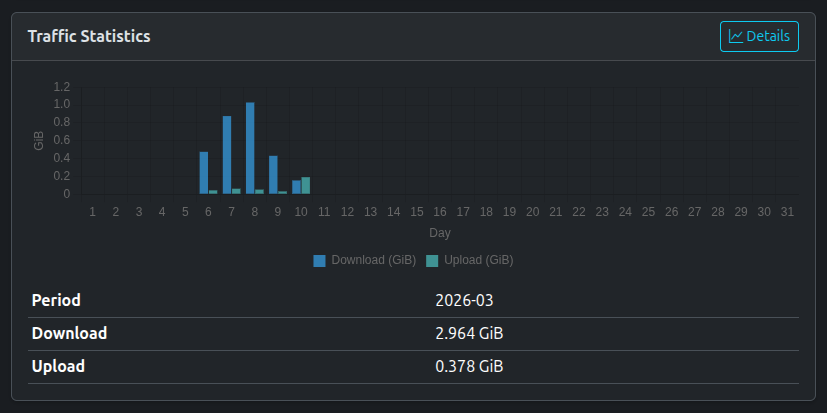 Monthly traffic statistics
One-Time Link
From the Main tab, click Create in the One-Time Link section to generate a self-service configuration URL.
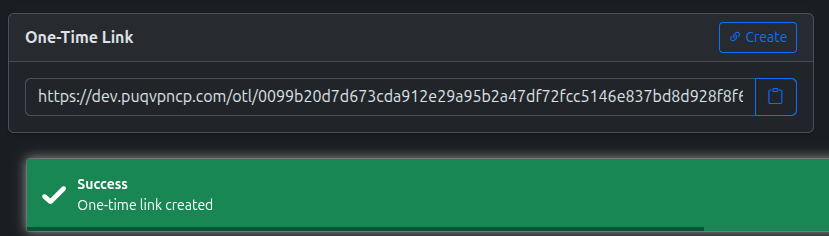 One-time link generated successfully
The link allows the end user to download their VPN configuration files, QR codes, and credentials without admin panel access. See One-Time Links for details.
WireGuard Tab
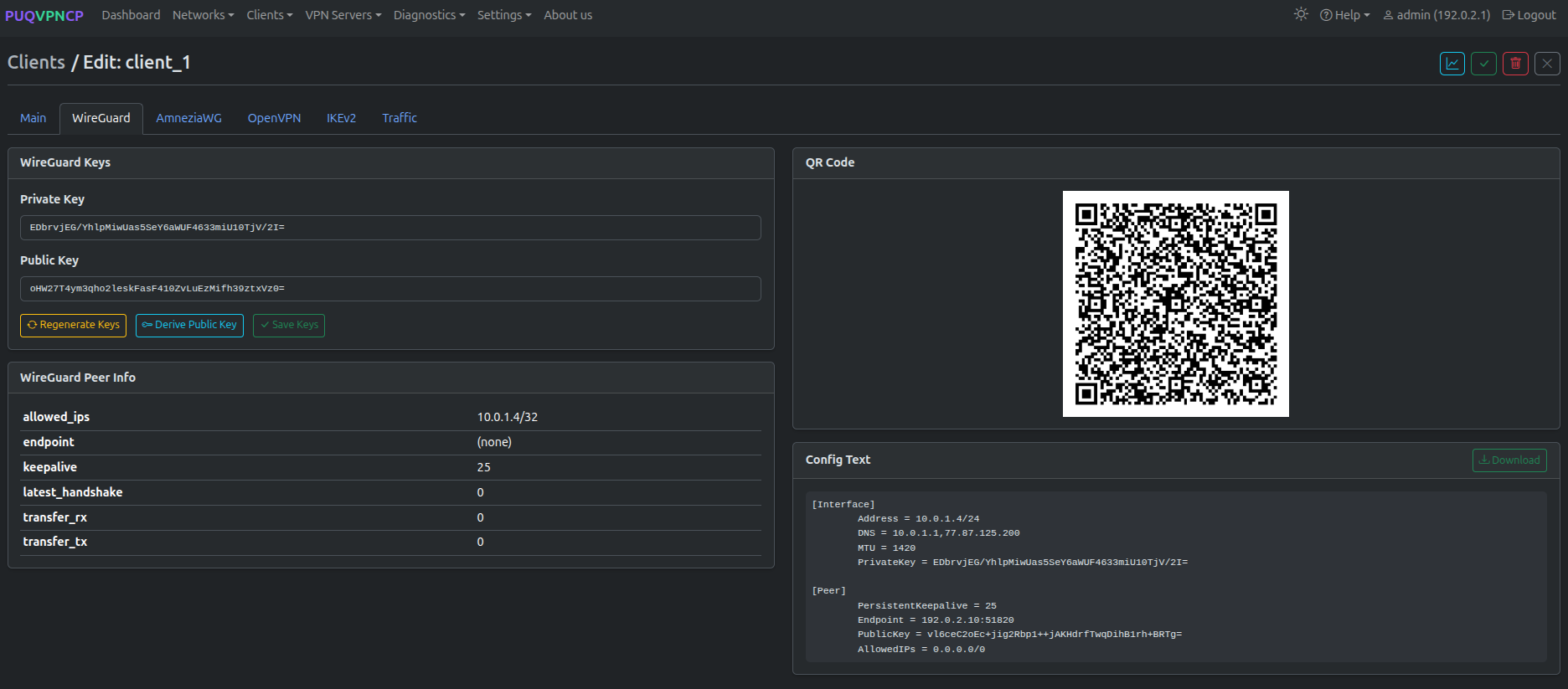 Client edit — WireGuard tab
Displays:
- WireGuard Keys — private/public key pair (regeneratable)
- WireGuard Peer Info — allowed IPs, endpoint, last handshake, transfer stats
- QR Code — scannable QR code for mobile client apps
- Config Text — full WireGuard configuration for copy/paste
AmneziaWG Tab
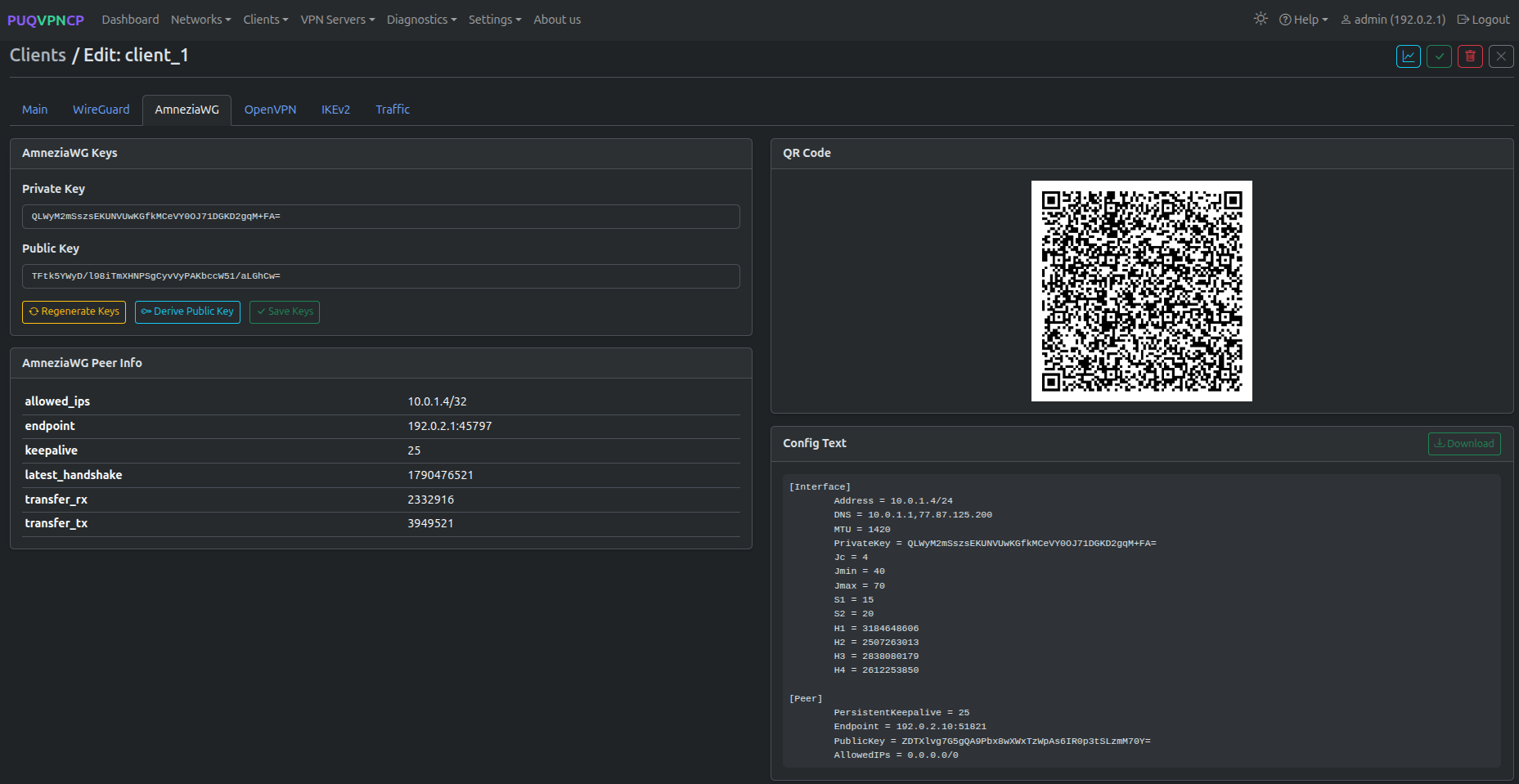 Client edit — AmneziaWG tab with keys and QR code
Displays:
- AmneziaWG Keys & Obfuscation — private/public key pair and obfuscation parameters (H1–H4, Jc, Jmin, Jmax, S1, S2)
- AmneziaWG Peer Info — allowed IPs, endpoint, last handshake, transfer stats
- QR Code — scannable QR code for AmneziaWG mobile apps (iOS and Android)
-
Config Text & Download — full AmneziaWG
.confconfiguration file
OpenVPN Tab
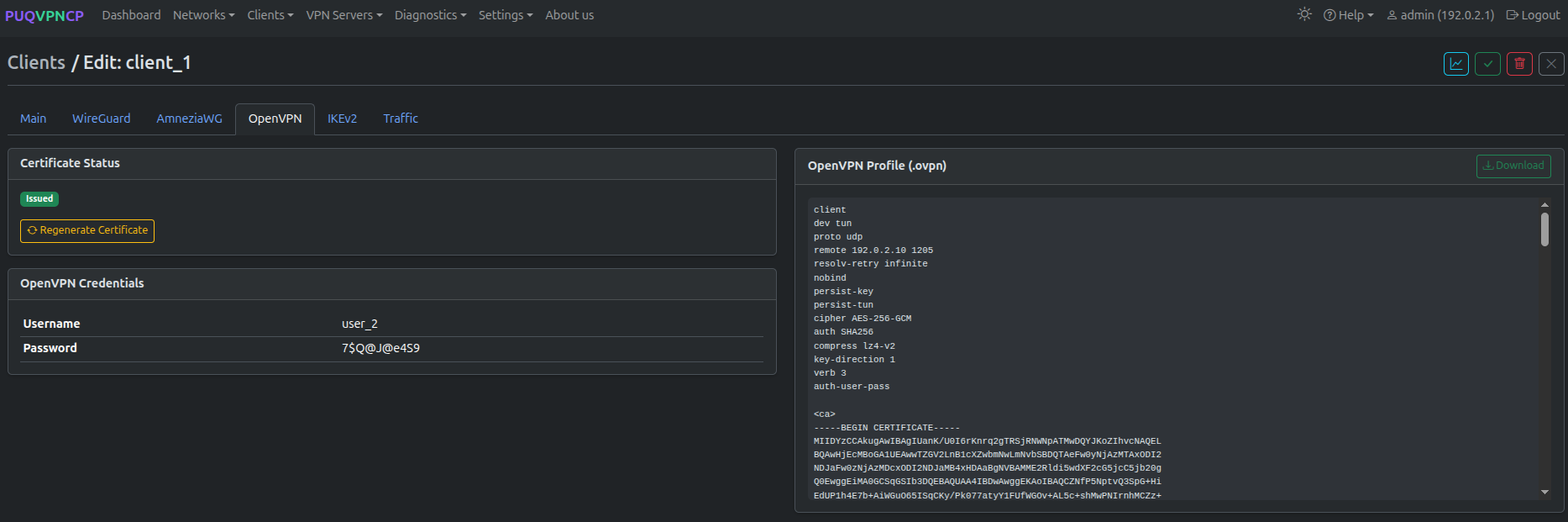 Client edit — OpenVPN tab
Displays:
- Certificate Status — Issued / Revoked with regeneration option
- OpenVPN Credentials — Username and password
- OpenVPN Profile (.ovpn) — full configuration file with embedded certificates, downloadable
IKEv2 Tab
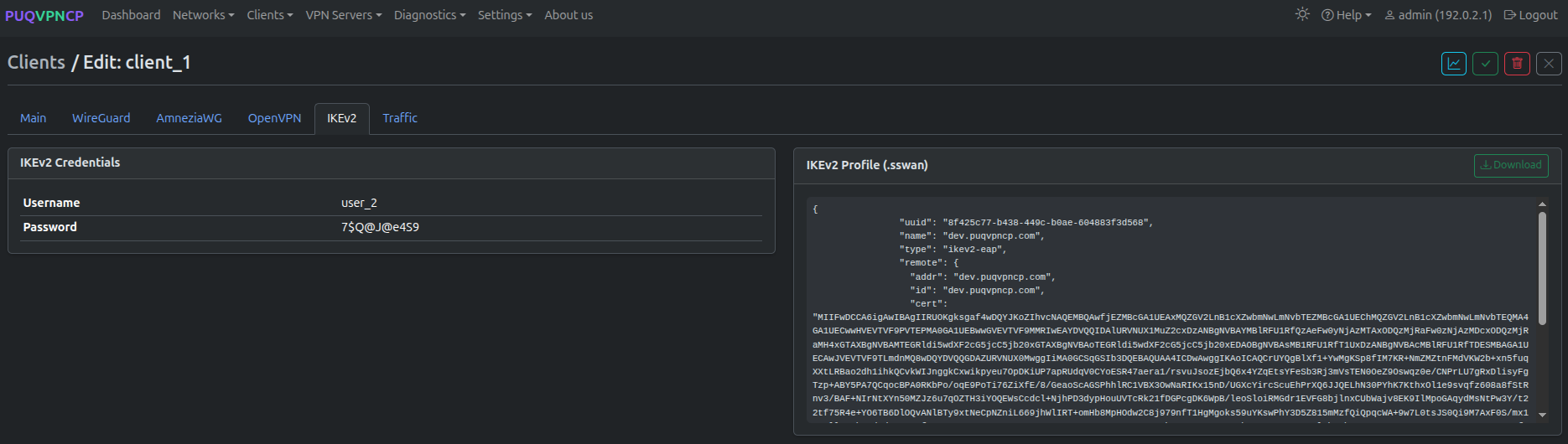 Client edit — IKEv2 tab
Displays:
- IKEv2 Credentials — username and password
- IKEv2 Profile (.sswan) — strongSwan configuration file, downloadable
Traffic Tab
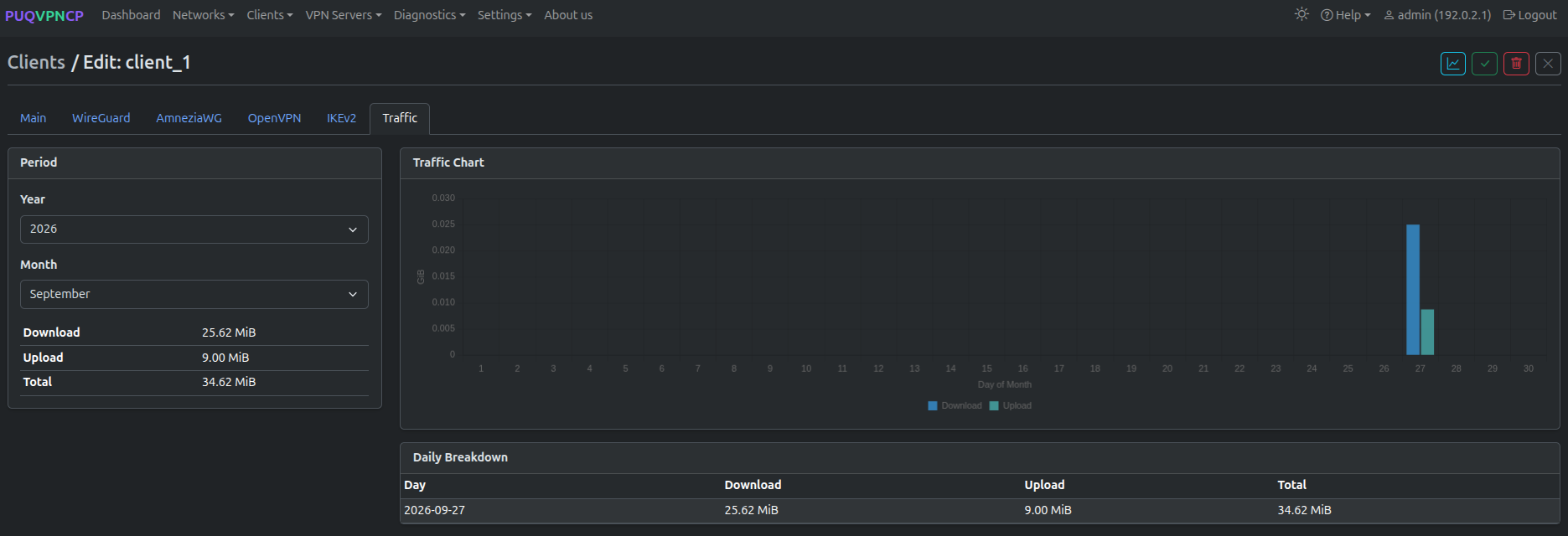 Client edit — Traffic tab with chart and daily breakdown
Monthly traffic view with:
- Period selector (year/month)
- Traffic Chart (daily bars)
- Download / Upload / Total aggregates
- Daily Breakdown table
Clients Online
The page shows a unified view of:
- WireGuard peers with recent handshakes
- AmneziaWG peers with recent handshakes
- OpenVPN connected sessions
- IKEv2 active SAs (security associations)
Each entry displays the client name, protocol, IP address, and connection duration.