 Skip to main content
13. DNS
Overview
PUQVPNCP includes a built-in bind9 DNS server that provides DNS resolution for all VPN clients. The DNS page is organized into three tabs: Settings, Records, and Ad Blocking.
Requirement:
bind9andbind9-utilspackages must be installed.
Settings
The Settings tab controls the bind9 DNS server configuration.
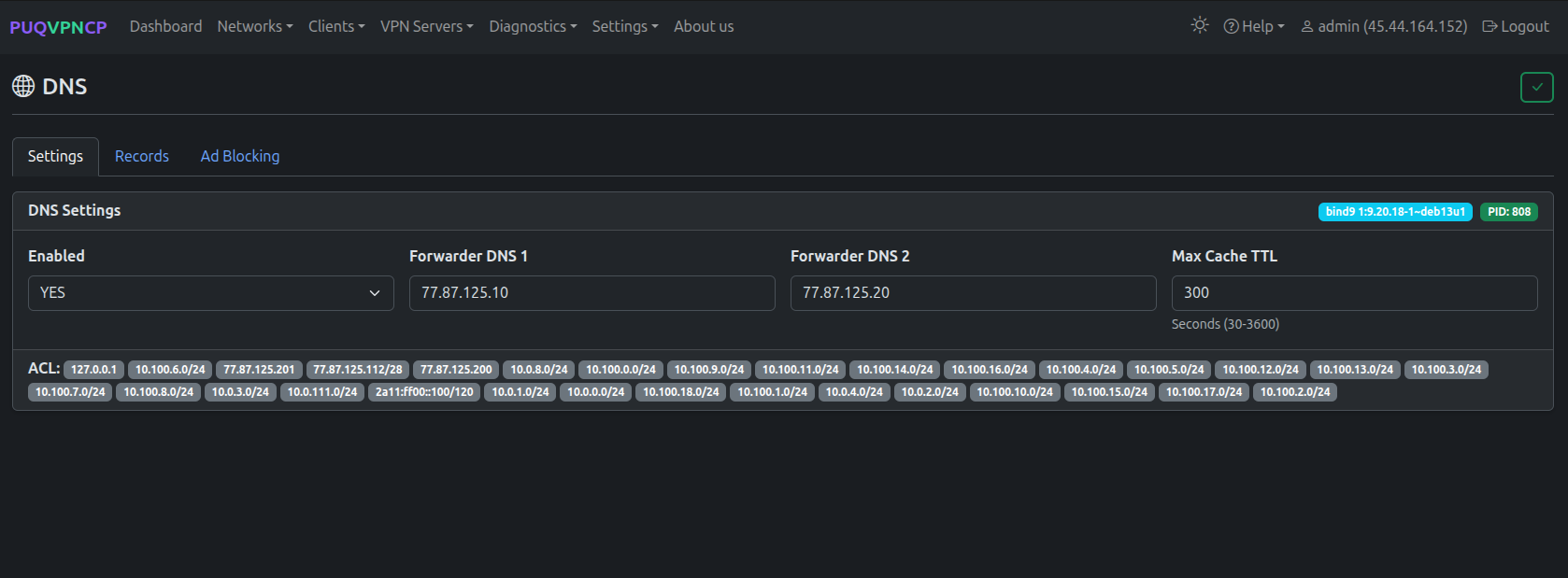 DNS Settings tab — server configuration and ACL
| Setting | Description |
|---|---|
| Enabled | Enable or disable the bind9 DNS server |
| Forwarder DNS 1 | Primary upstream DNS server for recursive queries |
| Forwarder DNS 2 | Secondary upstream DNS server |
| Max Cache TTL | Maximum time (30–3600 seconds) DNS responses are cached |
The ACL section at the bottom displays all IP addresses and subnets that are allowed to query this DNS server. This list is automatically generated from your VPN network configurations — it includes localhost, server IPs, and all VPN network subnets.
Tip: Set the network's DNS 1 to the VPN gateway IP (e.g.,
10.0.0.1) so clients use this built-in resolver. This prevents DNS leaks and enables ad blocking.
Click the checkmark button in the top right to save changes.
Records
The Records tab manages custom DNS entries using bind9 Response Policy Zone (RPZ). These records override public DNS for all VPN clients.
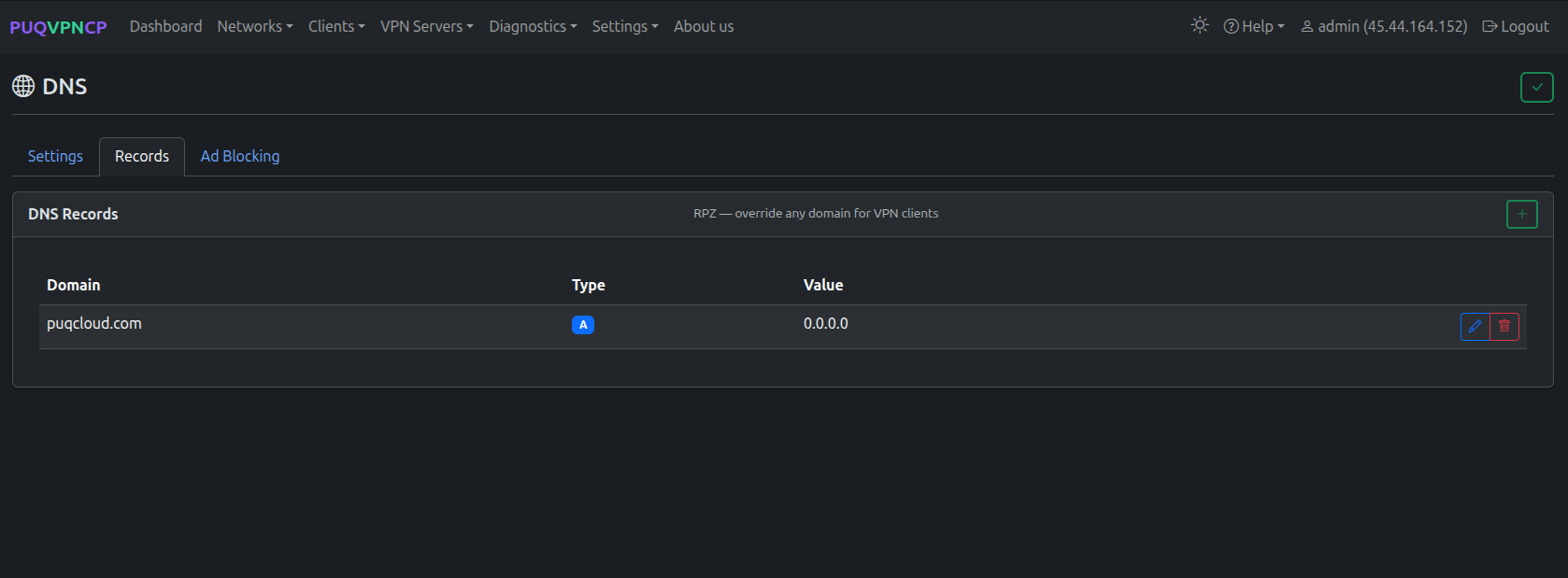 DNS Records tab — RPZ overrides for VPN clients
| Column | Description |
|---|---|
| Domain | Full domain name (e.g., puqcloud.com, internal.vpn) |
| Type | Record type — A (IPv4), AAAA (IPv6), CNAME, etc. |
| Value | Target IP address or hostname |
Use cases:
- Block specific domains by pointing them to
0.0.0.0 - Create internal DNS names for VPN resources (e.g.,
wiki.vpn→10.0.0.5) - Override public DNS entries for split-horizon DNS
Ad Blocking
The Ad Blocking tab provides DNS-level ad and tracker blocking for all VPN clients. No client-side software is needed — it works automatically for any device connected to the VPN.
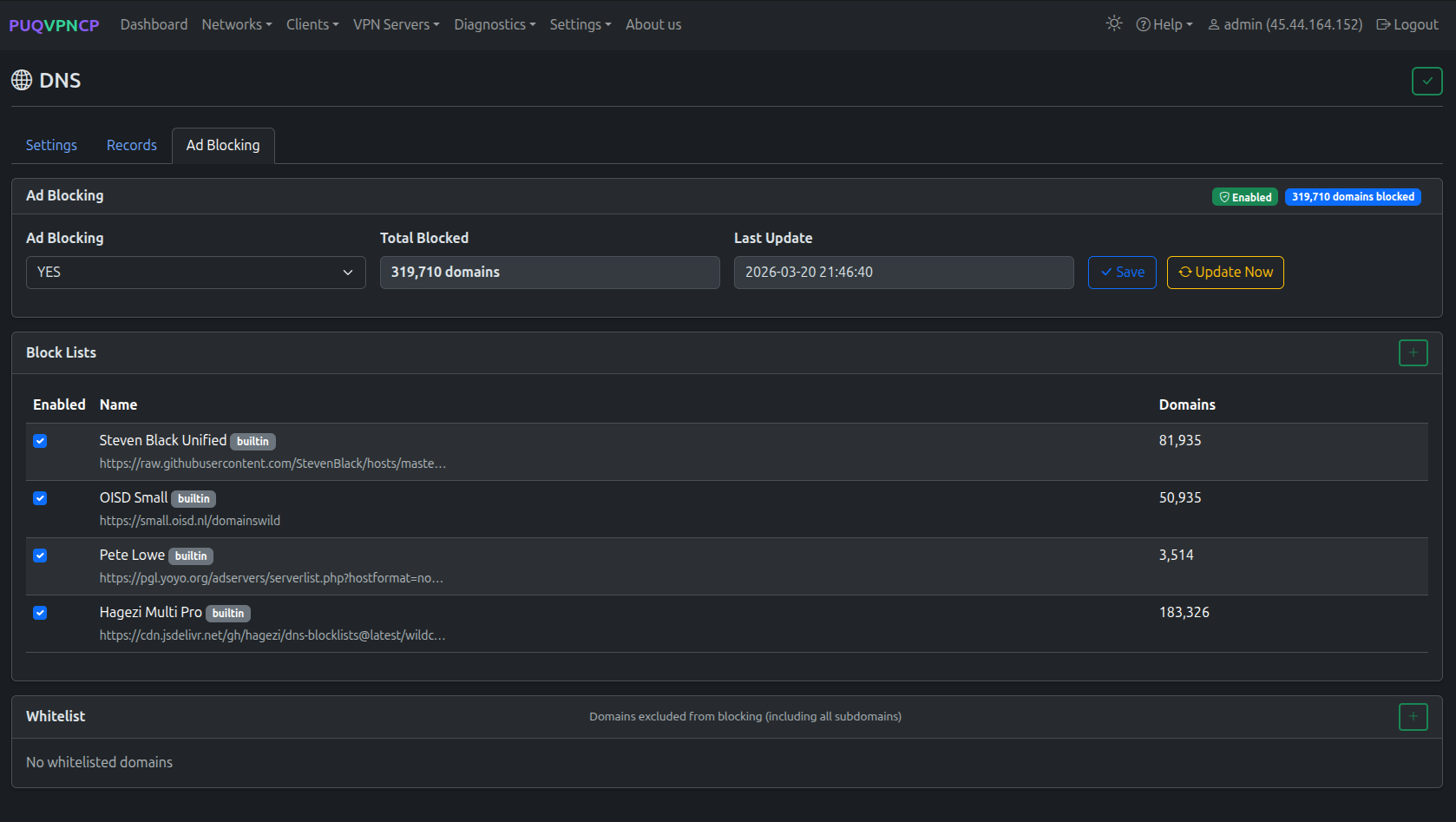 Ad Blocking tab — enable/disable, block lists, whitelist
How It Works
When a VPN client requests a domain that is on a block list (e.g., ads.google.com), the DNS server responds with NXDOMAIN (domain does not exist) instead of the real IP address. This prevents ads, trackers, and malware from loading across all apps and browsers.
Ad blocking uses a separate RPZ zone (rpz.adblock) that is independent of your static DNS records in the Records tab.
Configuration
| Setting | Description |
|---|---|
| Ad Blocking | Enable or disable ad blocking (YES/NO) |
| Total Blocked | Number of unique domains currently blocked |
| Last Update | Timestamp of the last block list update |
- Click Save to apply the enable/disable setting
- Click Update Now to force an immediate download of all enabled block lists
Block Lists
PUQVPNCP ships with 4 built-in block lists that cover ads, trackers, and malware domains:
| List | Description | Domains |
|---|---|---|
| Steven Black Unified | Ads, malware, fakenews — most popular community list | ~82,000 |
| OISD Small | Curated list with minimal false positives | ~51,000 |
| Pete Lowe | Only verified ad servers — very conservative | ~3,500 |
| Hagezi Multi Pro | Comprehensive, actively maintained | ~183,000 |
Built-in lists are marked with a builtin badge. They cannot be deleted but can be toggled on/off using the checkbox.
With all lists enabled, approximately 320,000 unique domains are blocked (after deduplication).
Supported blocklist formats:
-
Hosts format —
0.0.0.0 domain.comor127.0.0.1 domain.com - Domain-per-line — one domain per line
-
Wildcard —
*.domain.com -
Adblock filter —
||domain.com^
Custom Lists
| Field | Description |
|---|---|
| Name | Display name for the list |
| URL | HTTP/HTTPS URL to the blocklist file |
| Enabled | Whether the list is active |
Custom lists can be deleted; built-in lists cannot.
Whitelist
The Whitelist section allows you to exclude specific domains from blocking. When a domain is whitelisted, it and all its subdomains are excluded from ad blocking.
For example, whitelisting example.com will also unblock sub.example.com, api.example.com, etc.
Auto-Update
Block lists are automatically refreshed every 24 hours. The Last Update timestamp and per-list domain counts are shown on the Ad Blocking tab.
To force an immediate update, click Update Now. This downloads all enabled lists, deduplicates domains, applies the whitelist, and reloads bind9.
API
DNS and ad blocking can be fully managed via the REST API:
| Method | Endpoint | Description |
|---|---|---|
GET |
/api/v1/dns |
Get DNS configuration |
PUT |
/api/v1/dns |
Update DNS settings |
GET |
/api/v1/dns/adblock |
Get ad blocking configuration and statistics |
PUT |
/api/v1/dns/adblock |
Enable/disable ad blocking, toggle lists |
POST |
/api/v1/dns/adblock/update |
Force update block lists |
POST |
/api/v1/dns/adblock/lists |
Add custom block list |
DELETE |
/api/v1/dns/adblock/lists/{name} |
Delete custom list |
GET |
/api/v1/dns/adblock/whitelist |
List whitelisted domains |
POST |
/api/v1/dns/adblock/whitelist |
Add domain to whitelist |
DELETE |
/api/v1/dns/adblock/whitelist/{name} |
Remove domain from whitelist |
See API Reference for full endpoint documentation with request/response examples.