 Skip to main content
16. Backups
Overview
PUQVPNCP provides automatic and manual backup/restore functionality with optional FTP upload for offsite storage.
Backup List
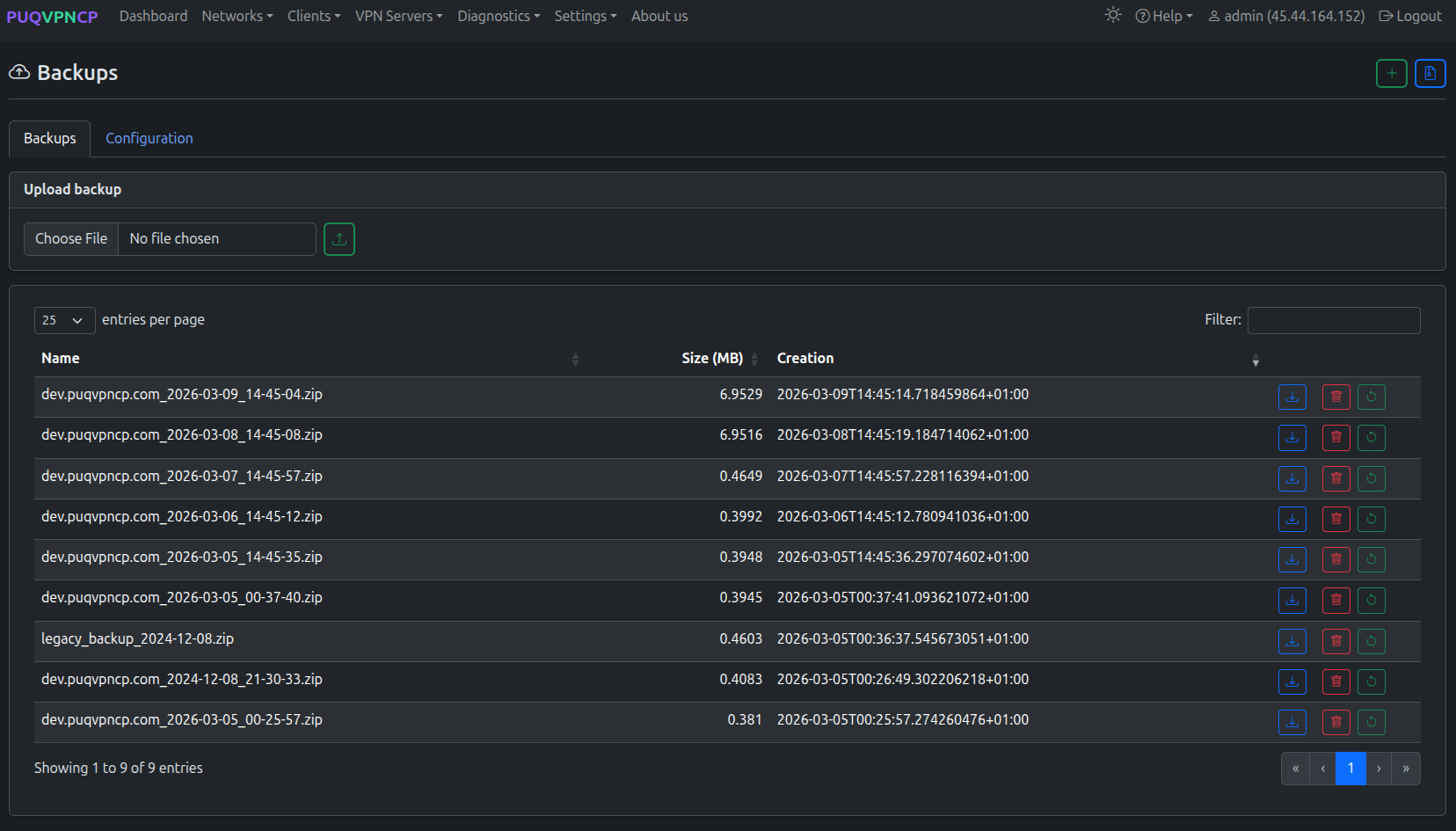 Backup list with create, restore, download, and delete actions
Each backup includes:
- All network and client configurations
- WireGuard keys, OpenVPN certificates, IKEv2 certificates
- Firewall rules, DNS settings, system configuration
- Traffic statistics data
- User accounts, permissions, API tokens
Actions
| Action | Description |
|---|---|
| Create | Create a new backup immediately |
| Restore | Restore the server to the backup state |
| Download | Download the backup archive |
| Delete | Delete the backup file |
| Upload | Upload a backup file |
Backup Configuration
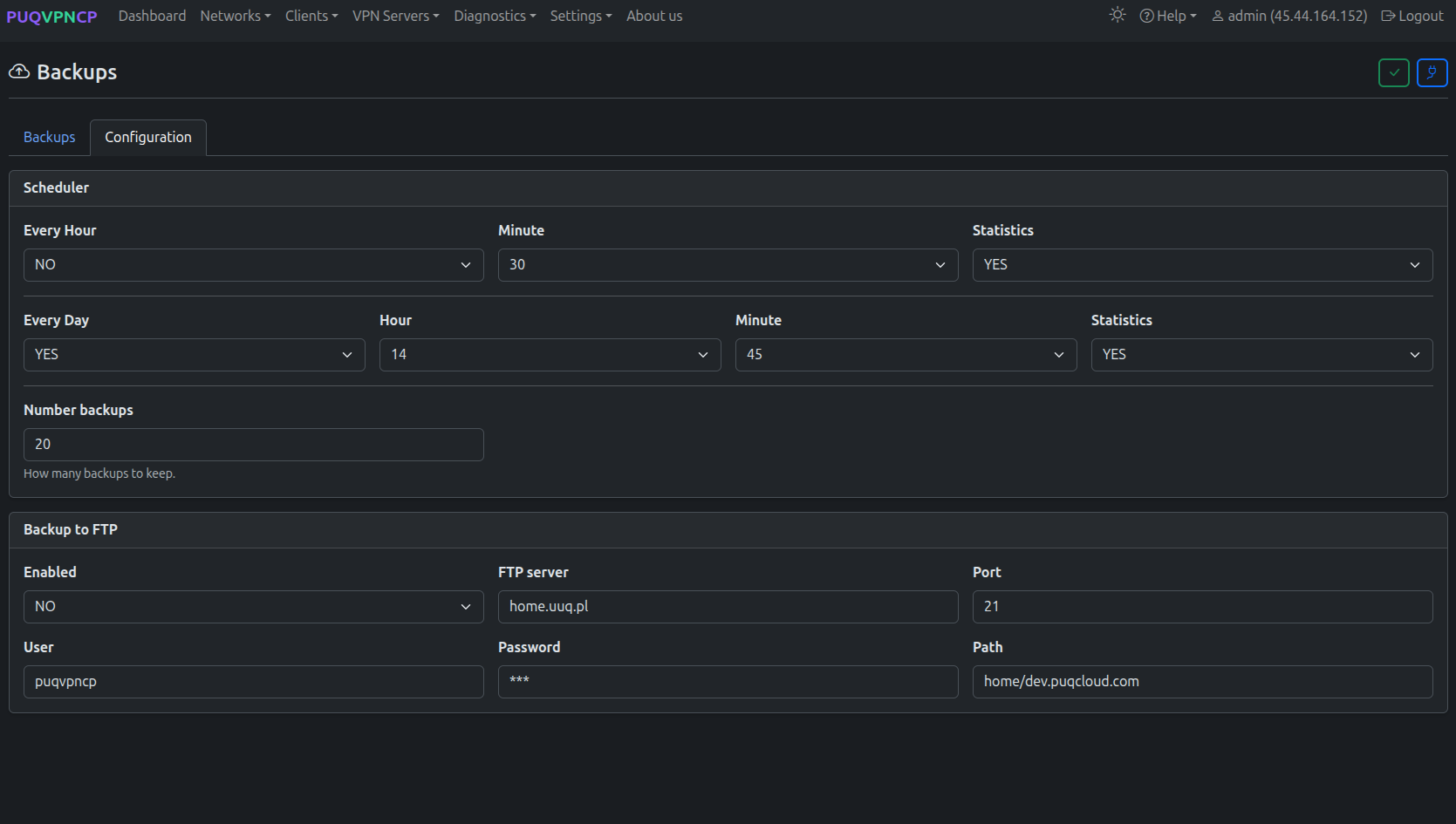 Backup scheduler configuration
Automatic Backups
| Setting | Description |
|---|---|
| Hourly | Enable/disable hourly backups |
| Daily | Enable/disable daily backups |
| Daily time | Time for daily backup (e.g., 14:45) |
| Max backups | Maximum number of backups to keep (oldest are deleted) |
FTP Backup
| Setting | Description |
|---|---|
| FTP Backup | Enable/disable FTP upload after each backup |
| FTP Server | FTP server address |
| FTP Port | FTP port (default: 21) |
| FTP Username | FTP login |
| FTP Password | FTP password |
| FTP Directory | Remote directory for backups |
Tip: Use Test FTP button to verify the FTP connection before enabling automatic uploads.
Restoring a Backup
- Go to Settings > Backups
- Click Restore on the desired backup
- Confirm the restore operation
- The system will reload automatically after restoration
Warning: Restoring a backup overwrites all current configurations and data. Create a backup of the current state before restoring.