 Skip to main content
Backups
Proxmox KVM module WHMCS
Order now | Download | Community
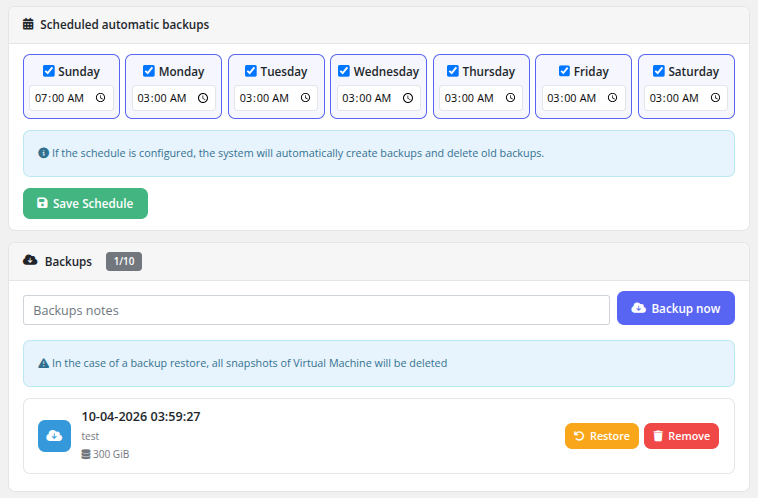
The Backups page provides full VM backup management, including scheduled automatic backups, manual on-demand backups, restore from backup, and backup removal.
Scheduled Automatic Backups
The top section of the page displays the backup schedule configuration with a day-of-week grid. For each day of the week (Sunday through Saturday), the client can:
- Enable or disable the day using the checkbox.
- Set the time for the backup to run on that day.
After configuring the schedule, click Save Schedule to apply the changes. When a schedule is configured, the system will automatically create backups at the specified times and delete old backups that exceed the retention quota.
An informational note confirms: "If the schedule is configured, the system will automatically create backups and delete old backups."
Backup Quota
The backup quota is displayed as a counter next to the Backups heading (e.g., 1/10), showing the number of existing backups out of the maximum allowed. The quota limit is configured by the administrator in the product settings.
Creating a Manual Backup
- Optionally enter a note in the Backups notes text field to identify the backup.
- Click the Backup now button.
- The backup task is submitted to Proxmox and runs in the background. Progress is monitored by the WHMCS cron system.
Backup List
Each backup in the list displays:
- Date and time — When the backup was created
- Description — The note entered when creating the backup
- Size — The storage size of the backup (e.g., 300 GiB)
For each backup, two actions are available:
- Restore — Restore the VM from this backup. The VM will be stopped during the restore process.
- Remove — Permanently delete this backup to free up storage space and quota.
A warning note reminds the client: "In the case of a backup restore, all snapshots of Virtual Machine will be deleted."
 client-area-backups-schedule.png
How scheduled backups run
On each cron tick the backup task:
- Checks which VMs have the current weekday enabled in their schedule.
- Checks whether the configured time-of-day for today is already in the past (so that the job runs once per day, not repeatedly).
- Checks whether today's backup already exists — if yes, skips.
- Checks whether there is a free backup slot. If the quota is full, the oldest backup is deleted first to make room.
- Creates the new backup and monitors the Proxmox task until completion.
Backup restoration
Before a backup is restored, the VM must be in a powered off state. After a successful restore the module automatically re-applies the current package parameters to the restored VM:
- Set CPU & RAM if different from the restored values
- Resize system disk if different
- Re-apply system disk bandwidth limits
- Create additional disk if needed
- Resize additional disk if needed
- Re-apply additional disk bandwidth limits
- Re-apply network configuration (bridge, VLAN, bandwidth, MAC)
- Start the VM
- Send the Backup restored email to the client
If the restore fails for any reason, the client is given the option to retry the restore or to reinstall the virtual machine from scratch.
Important Notes
- Backups are stored on the backup storage configured in Proxmox by the administrator.
- Restoring a backup will stop the VM and delete all existing snapshots.
- Backup creation runs as a background task; large VMs may take considerable time to back up.
- Scheduled backups are executed by the WHMCS cron system. Ensure that the cron is running properly for scheduled backups to function.
- While a backup is being created or restored, all other VM management operations are suspended — Start/Stop, Reinstall, Reset password, Snapshots and package changes are locked until Proxmox releases the backup lock.
- The datastore used for backups must either not rotate backup copies, or rotate them in a way that does not interfere with the number of spare copies purchased by the client.