 Skip to main content
noVNC Console
Proxmox KVM module WHMCS
Order now | Download | Community
The noVNC console provides browser-based remote access to the virtual machine's display, allowing clients to interact with their VM directly without requiring a separate VNC client application.
Accessing the Console
 client-area-novnc-connecting.png
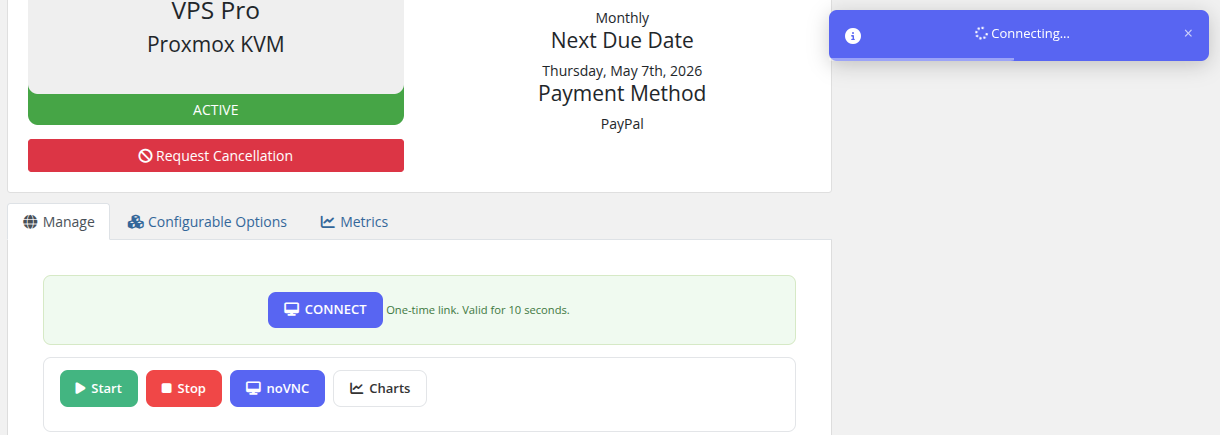
Connecting
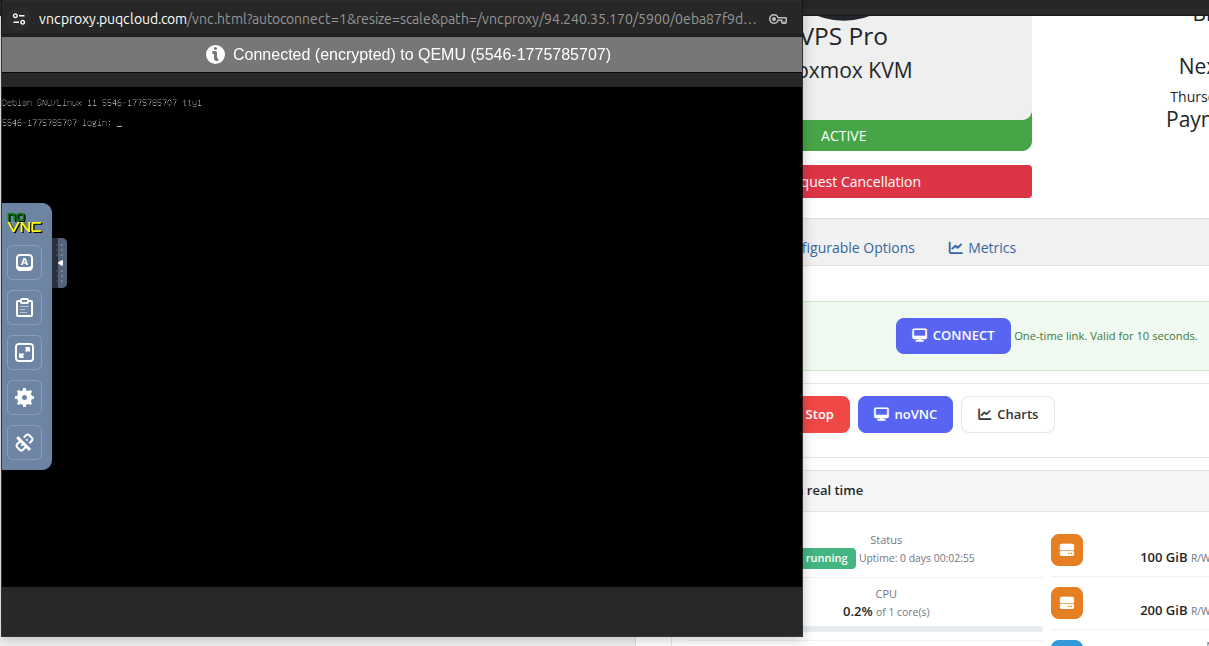
After clicking the CONNECT button, a new browser tab opens and establishes a secure, encrypted WebSocket connection to the Proxmox VNC proxy. A status indicator in the console confirms the connection, showing the target QEMU VM identifier.
 client-area-novnc-console-open.png
Console View
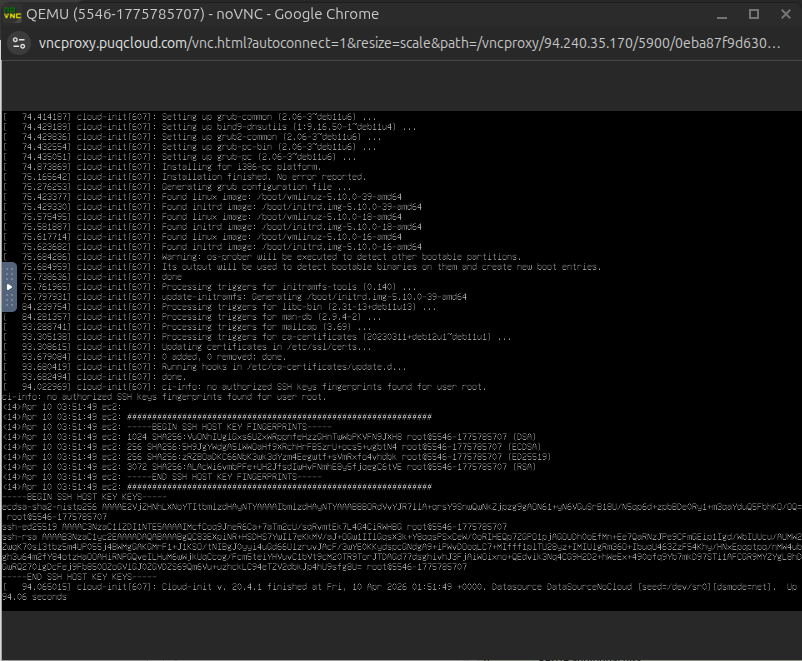
Once connected, the full noVNC console is displayed, providing direct keyboard and mouse interaction with the VM. The console toolbar on the left side provides additional controls for clipboard, screen scaling, and connection settings.
 novnc-console-connected.png
Important Notes
- The console connection link is one-time use and expires after 10 seconds. If the link expires, click the noVNC button again to generate a new one.
- The VM must be in a running state to open a console session.
- The noVNC feature must be enabled in the product's Client Area Permissions by the administrator.
- The connection is encrypted (TLS) between the browser and the VNC proxy server.
- Full keyboard input is supported, including special key combinations (Ctrl+Alt+Del, etc.) via the console toolbar.