 Skip to main content
Virtual Machine Templates
Proxmox KVM module WHMCS
Order now | Download | Community
Overview
The module provisions virtual machines by cloning existing Proxmox VM templates. Before using the module, you need to prepare at least one VM template in your Proxmox environment. Templates must be properly prepared inside the Proxmox panel — the module does not install an operating system from ISO, it only clones a ready template and applies configuration via cloud-init.
Physical Requirements
VM templates must meet the following specifications:
- Resource sizing: all template parameters (CPU cores, RAM, system disk size) must be smaller than the smallest package you plan to offer clients. The module can grow disks and increase CPU/RAM during deployment, but it cannot shrink them.
- Multi-disk layout: if you plan to offer VMs with multiple disks on different storage locations, create those disks on the appropriate storage already in the template. Otherwise Proxmox may consolidate all disks on the same storage during clone.
- Cloud-init drive: a cloud-init disk is mandatory for automatic VM configuration after cloning.
-
Partition layout: partitions of the system disk must be arranged so that the root partition is the LAST partition in the table. This is required for automatic root filesystem expansion by
cloud-initramfs-growrootduring first boot.
Cloud-Init Requirement
Cloud-init is required for automatic VM configuration. The module uses cloud-init to set:
- Hostname
- IP address and network configuration
- DNS servers
- User account and password
- SSH keys
Without cloud-init, the module cannot automatically configure the VM's network and credentials after cloning.
🚀 Automated Template Creation with PUQ PVE OS Builder (Recommended)
The easiest and officially recommended way to create Proxmox VM templates for the WHMCS module is by using PUQ PVE OS Builder — a dedicated, containerized application designed to automate the creation of Proxmox VE .vma.zst templates. Perfect for infrastructure automation and WHMCS integration, this tool allows you to:
- Download official cloud base images (Debian, Ubuntu, AlmaLinux, Rocky, CentOS, Alpine).
- Customize OS Profiles (QEMU hardware, Cloud-Init, sysctl tuning, security hardening).
- Automate localization and regional repository mirrors.
- Run concurrent build matrices.
- Mount directly into Proxmox VE via NFS for instant restore.
🔐 1. Login & Access
Access the PVE OS Builder via your configured Docker port.
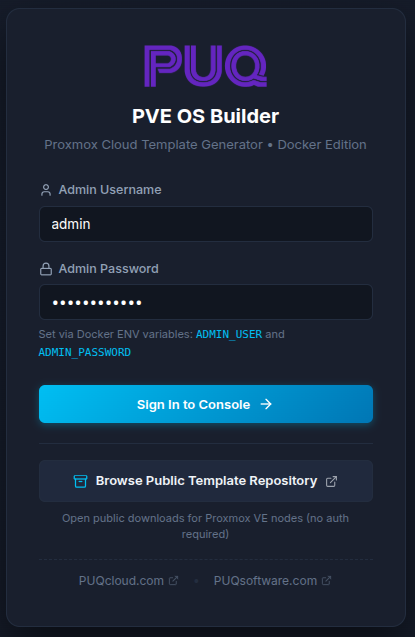
Log in using the credentials defined in your Docker environment variables (ADMIN_USER and ADMIN_PASSWORD). If you need public template downloads without authentication, you can access the Public Template Repository.
📊 2. Dashboard
The Dashboard provides a unified view of your system's telemetry and status.
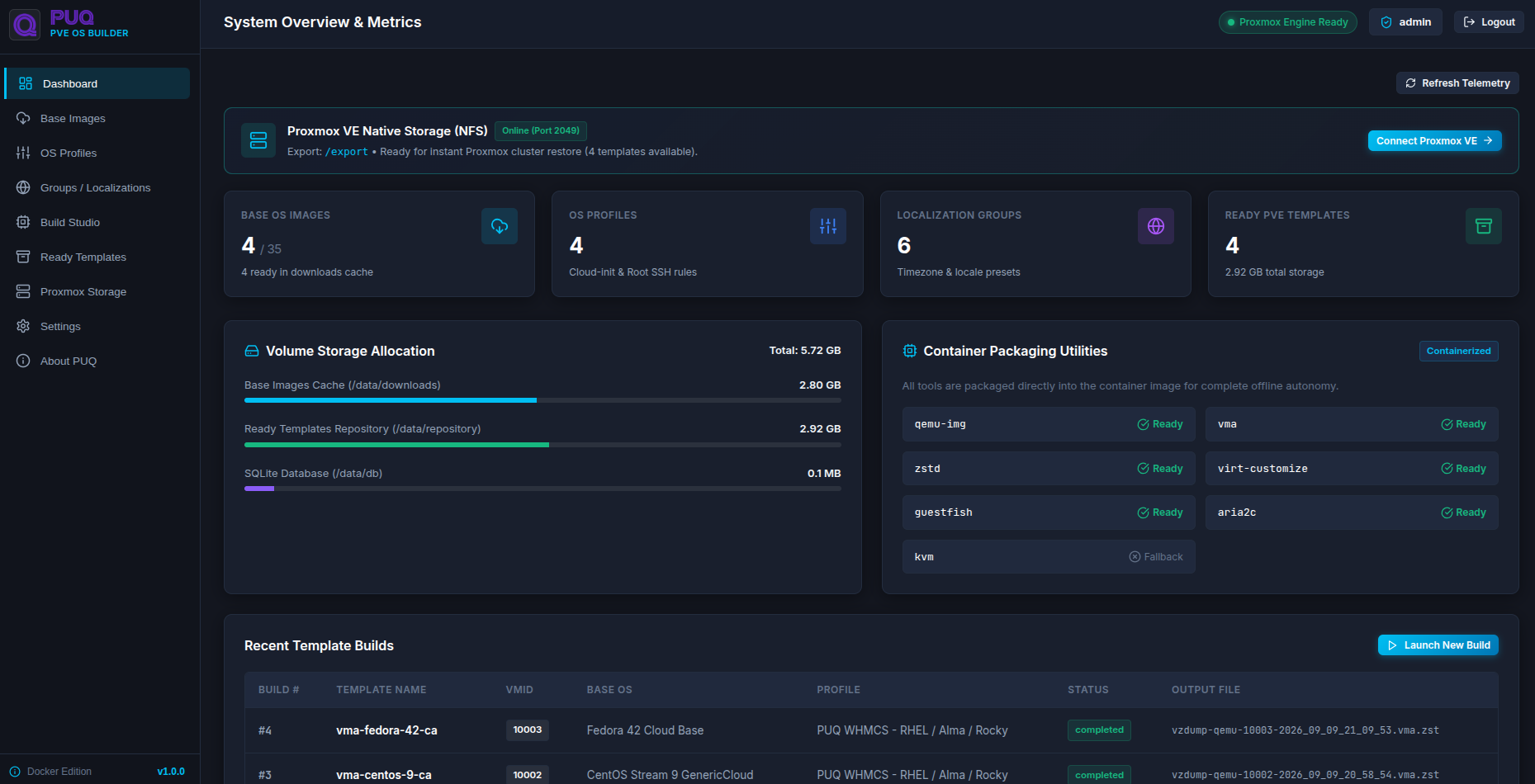
- Proxmox VE Native Storage (NFS): Monitor the status of the built-in NFS server and the number of ready templates.
- Resource Allocation: Track disk space usage for your base images cache and ready templates repository.
-
Packaging Utilities: Verify that required tools (
qemu-img,vma,zstd,virt-customize) are packaged and ready. - Recent Builds: Quickly see the status of your latest matrix jobs.
📥 3. Base OS Images
Before building templates, you need base images. The Base OS Images Catalog connects to official upstream repositories.

- One-Click Download: Pull images directly into your volume storage.
- Real-Time Progress: View live download progress speeds.
- Supported Families: Debian, Ubuntu, AlmaLinux, Rocky, CentOS, Alpine Linux.
⚙️ 4. OS Customization Profiles
Profiles dictate exactly how your virtual machine templates are configured and hardened.
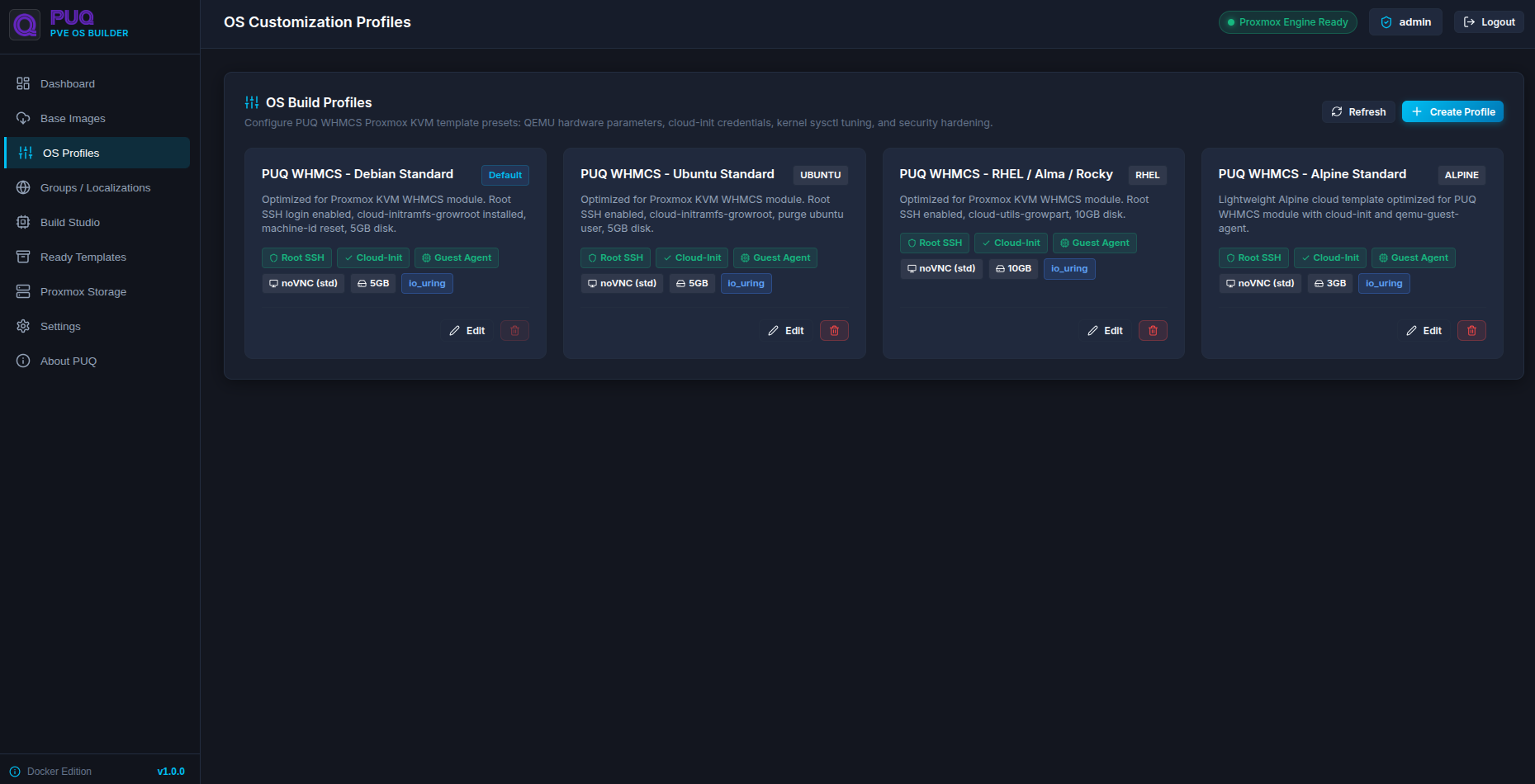
Create tailored profiles for different operating systems and use cases (e.g., WHMCS standard nodes vs. lightweight Alpine containers).
Profile Configuration Tabs
-
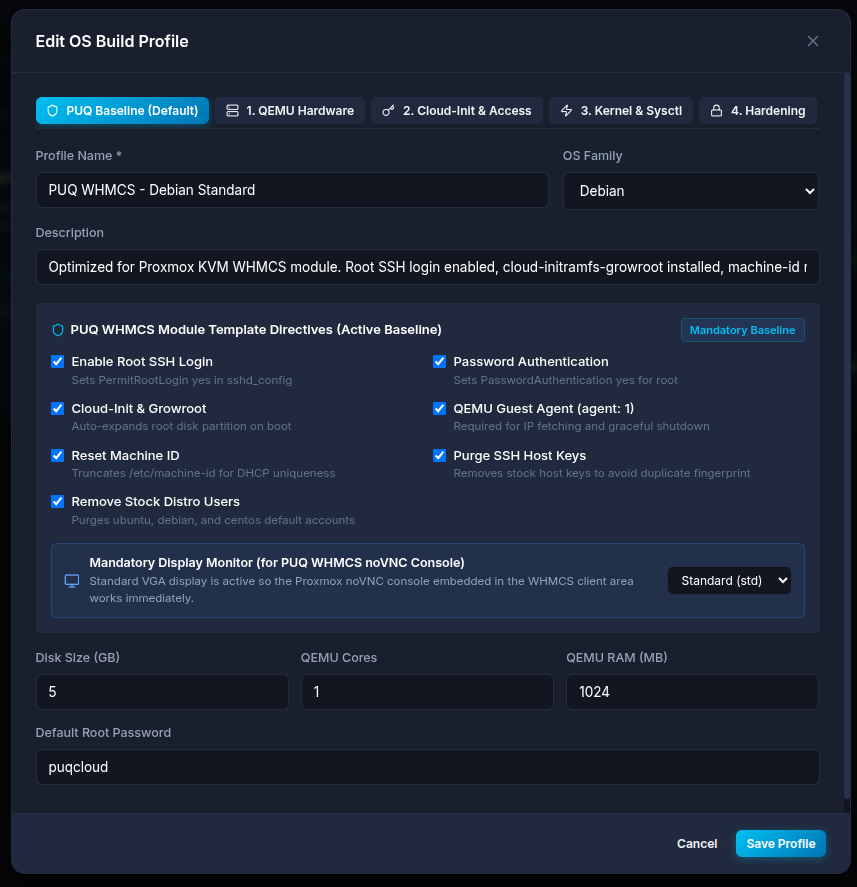
PUQ Baseline: Set the root password, disk size, and enable mandatory WHMCS directives like Root SSH Login, Cloud-Init Growroot, and Machine ID resets.
-
QEMU Hardware: Configure
cputype (host vs x86-64-v2), Disk Async I/O (io_uring), Discard/TRIM, SSD Emulation, and Network Firewalls.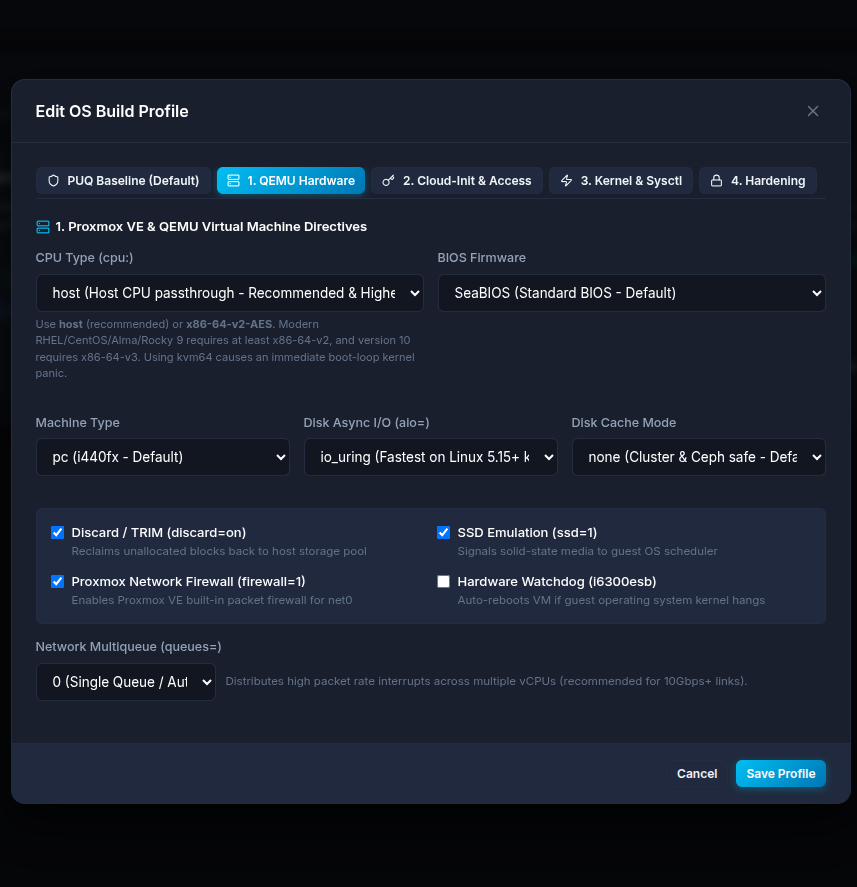
-
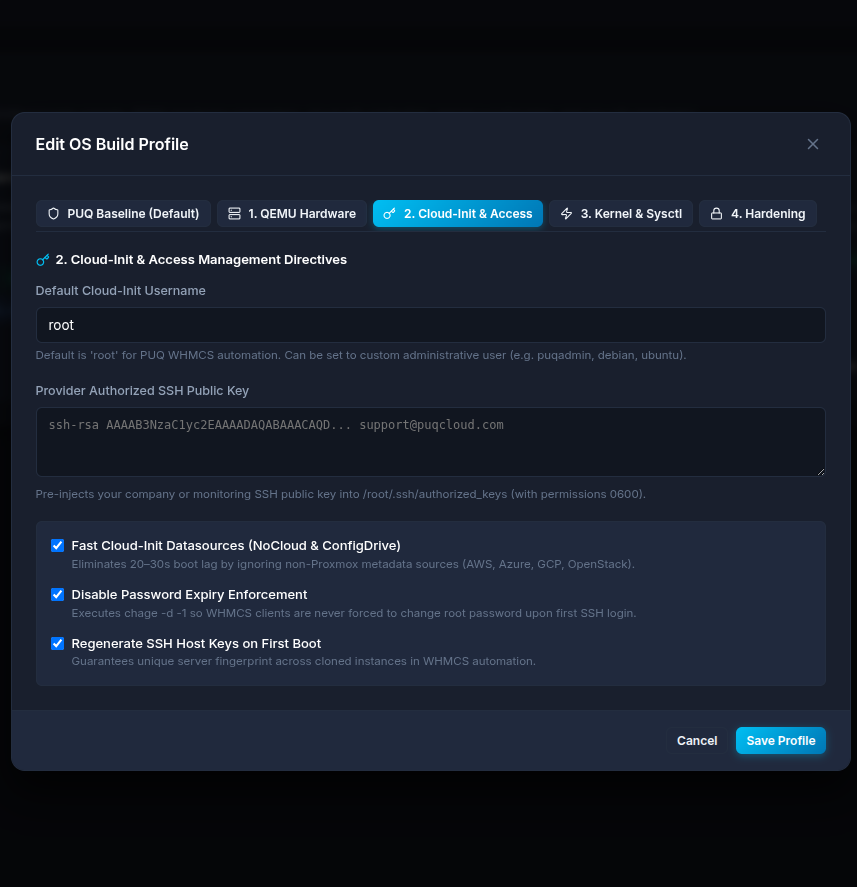
Cloud-Init & Access: Define the default username, inject SSH public keys, disable password expiry, and enforce fast Cloud-Init datasources.
-
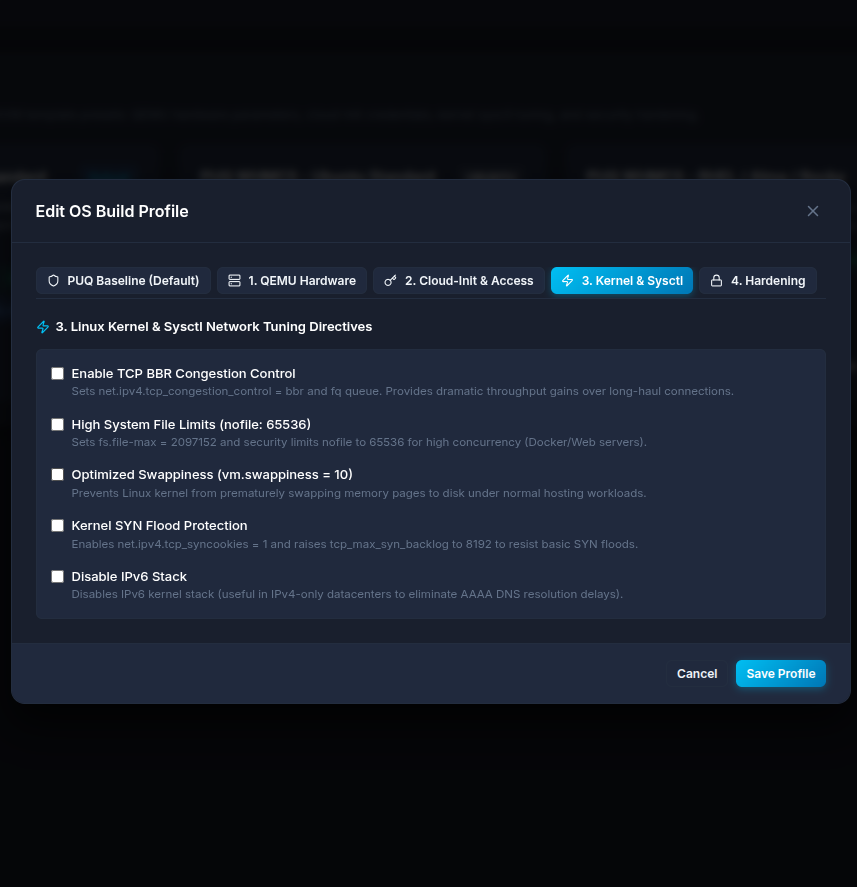
Kernel & Sysctl: Optimize networking with TCP BBR Congestion Control, increase file limits, optimize swappiness, and enable SYN Flood Protection.
-
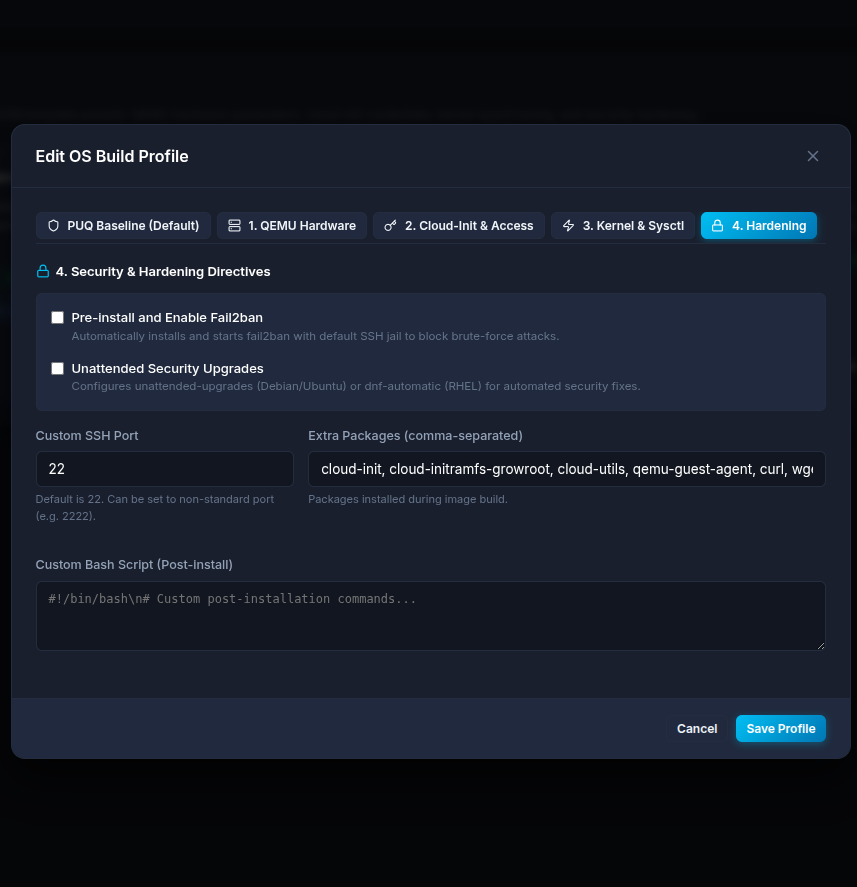
Hardening: Automatically install Fail2ban, configure unattended security upgrades, change custom SSH ports, and run arbitrary Bash post-install scripts.
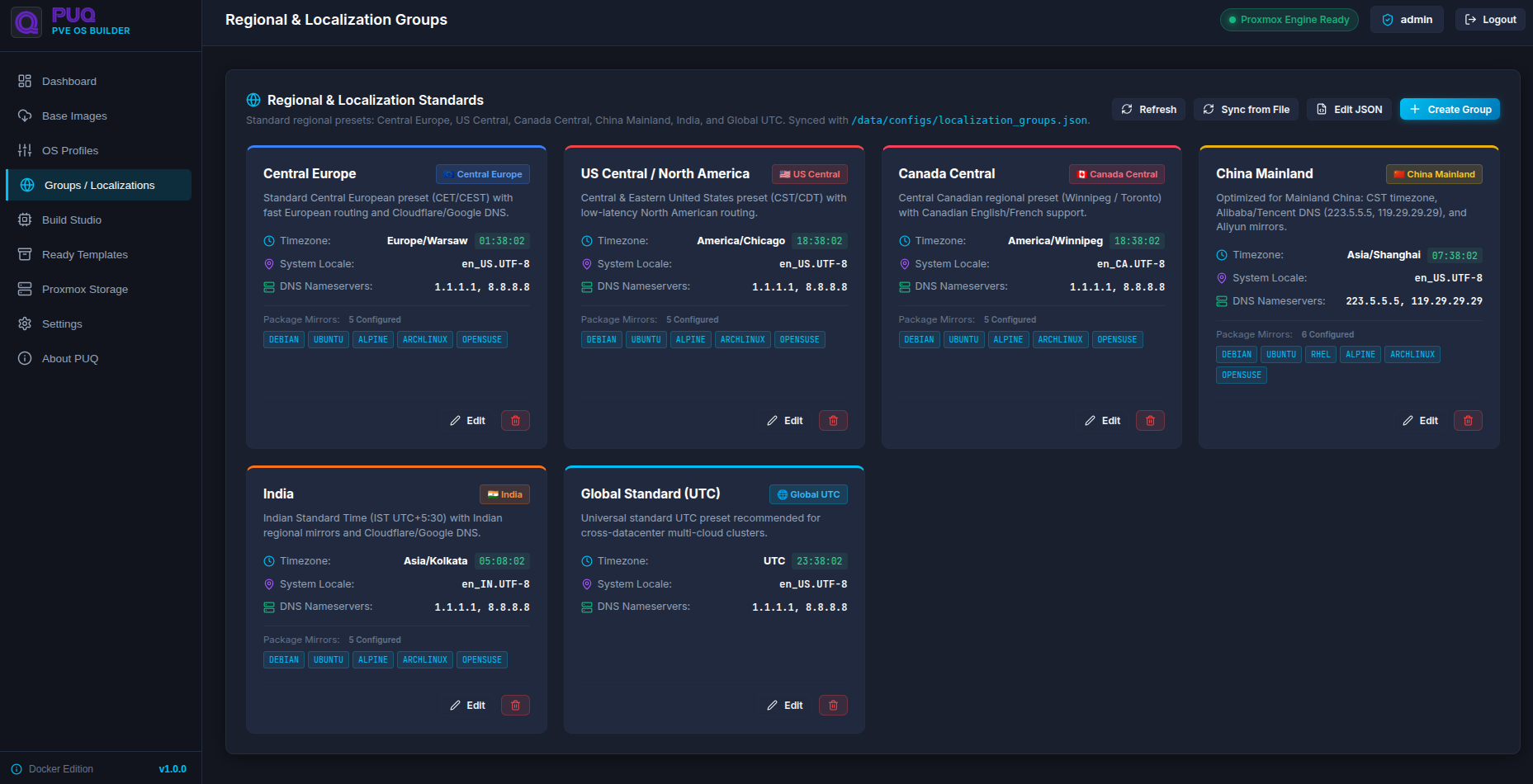
🌍 5. Regional & Localization Groups
To ensure fast performance globally, templates can be localized for specific regions.
-
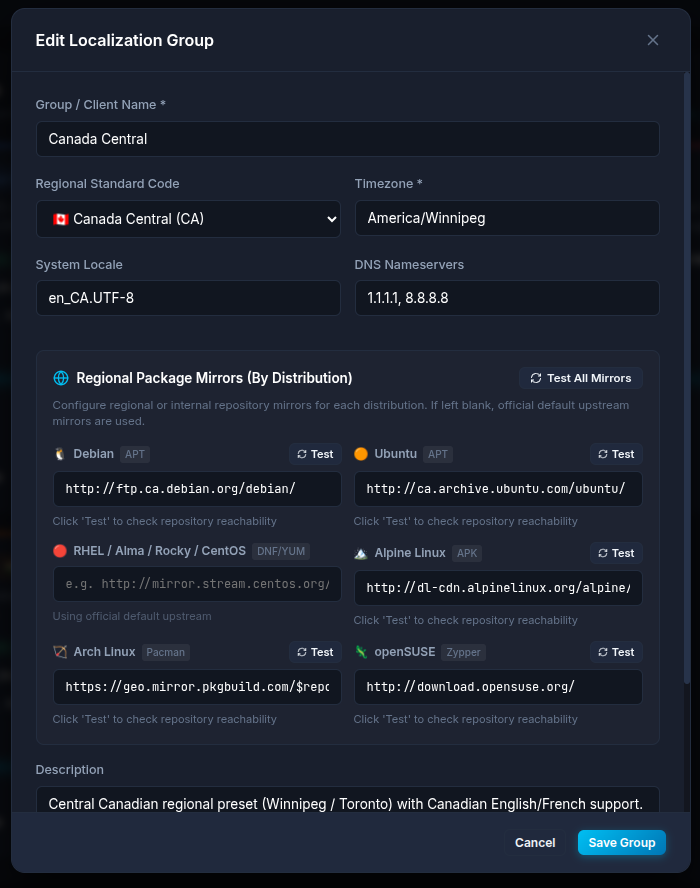
Timezone & Locale: Define system timezones (e.g.,
Europe/Warsaw,America/Winnipeg) and locales. -
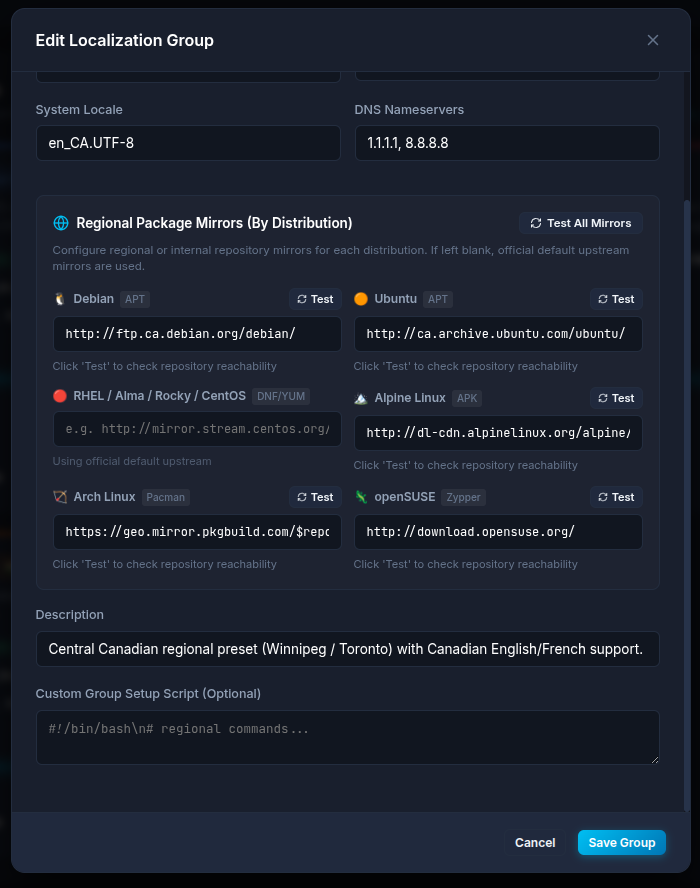
Package Mirrors: Speed up VM operations by hardcoding regional repository mirrors for
apt,dnf/yum,apk,pacman, andzypper. - Custom Scripts: Run specific regional commands during the build phase.
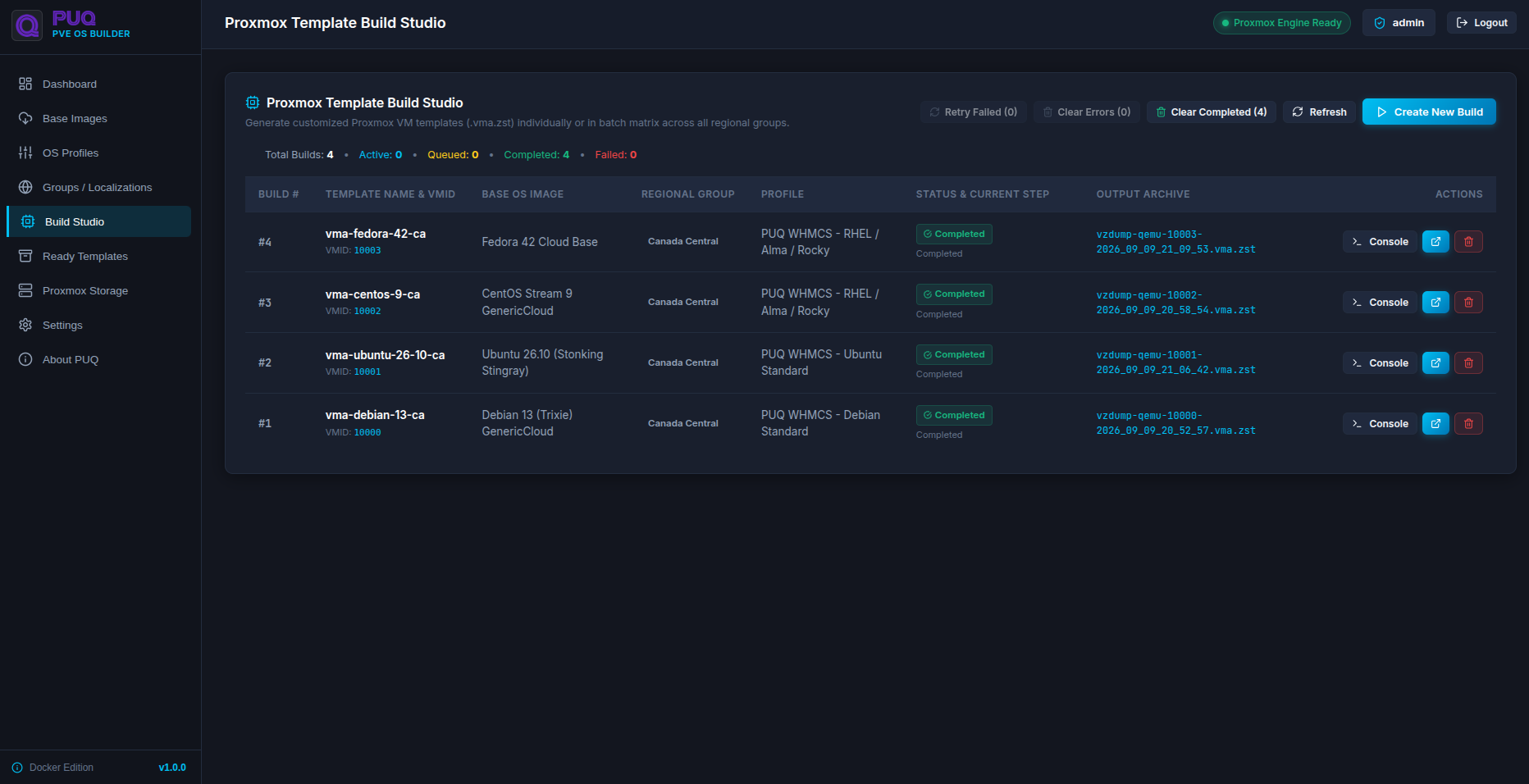
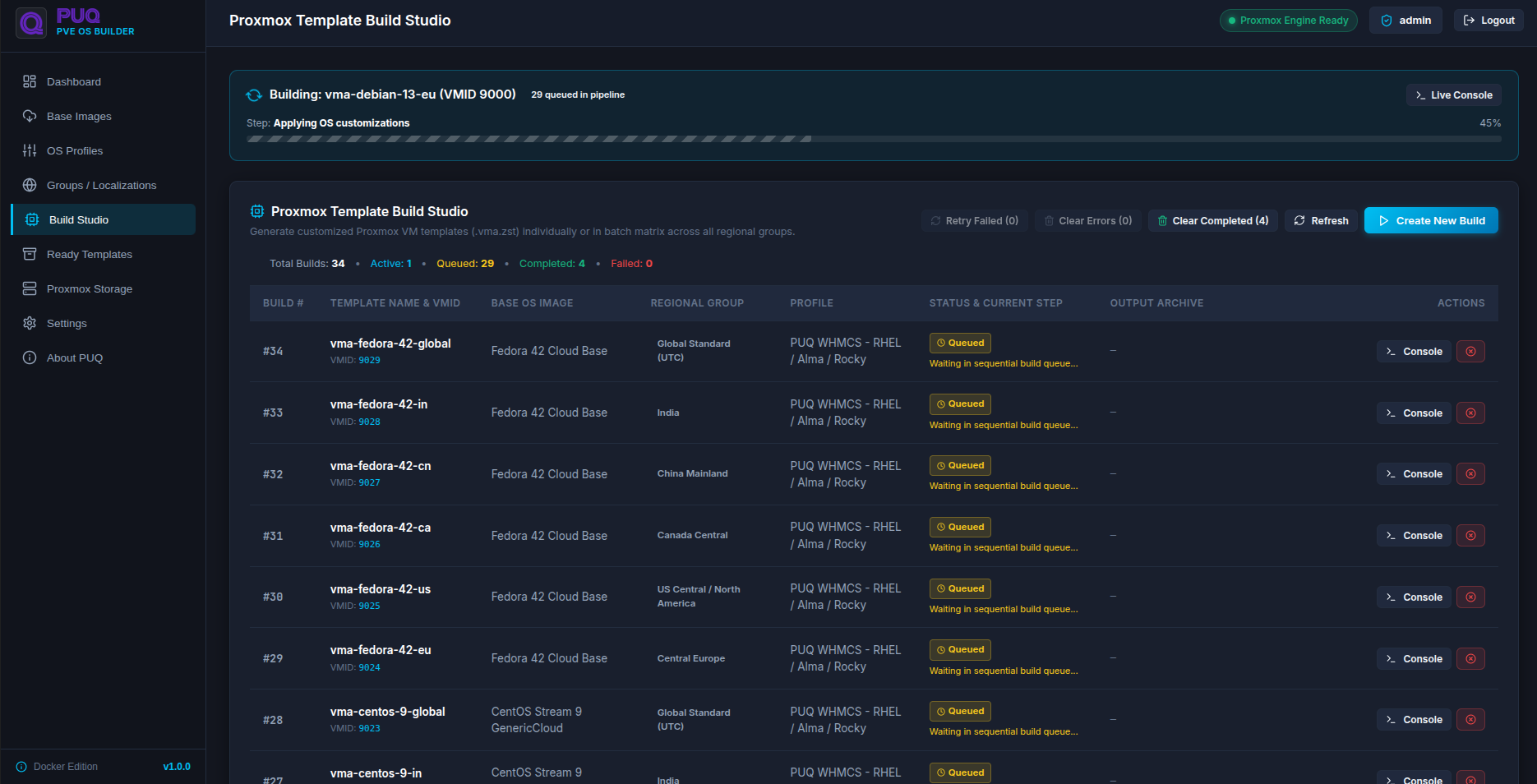
🏗️ 6. Proxmox Template Build Studio
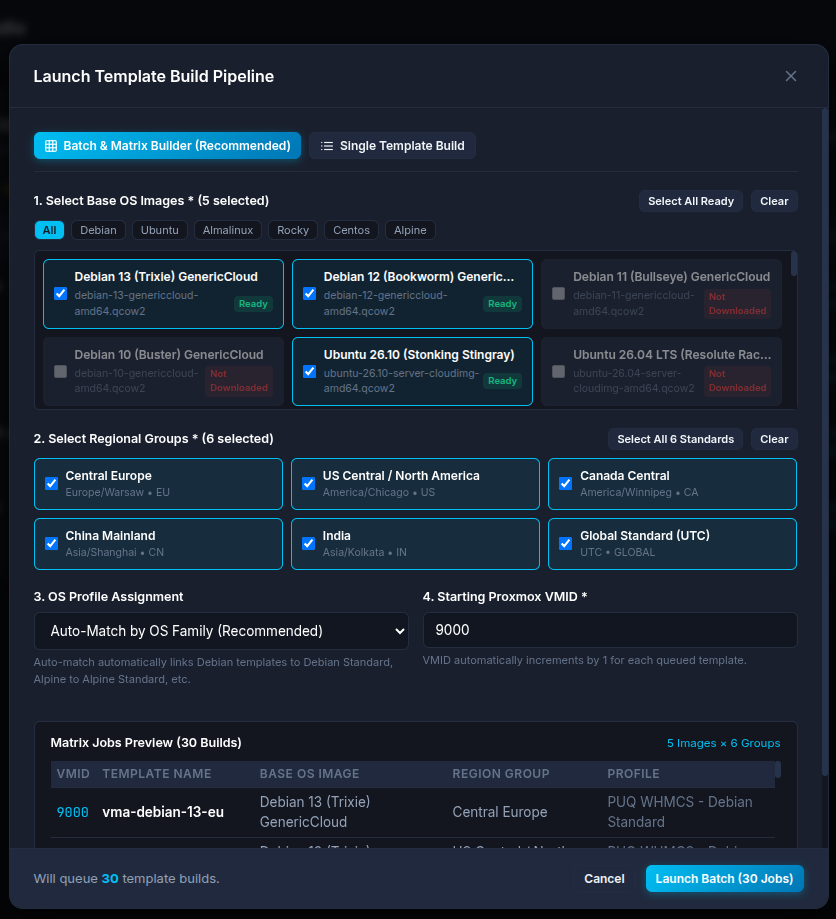
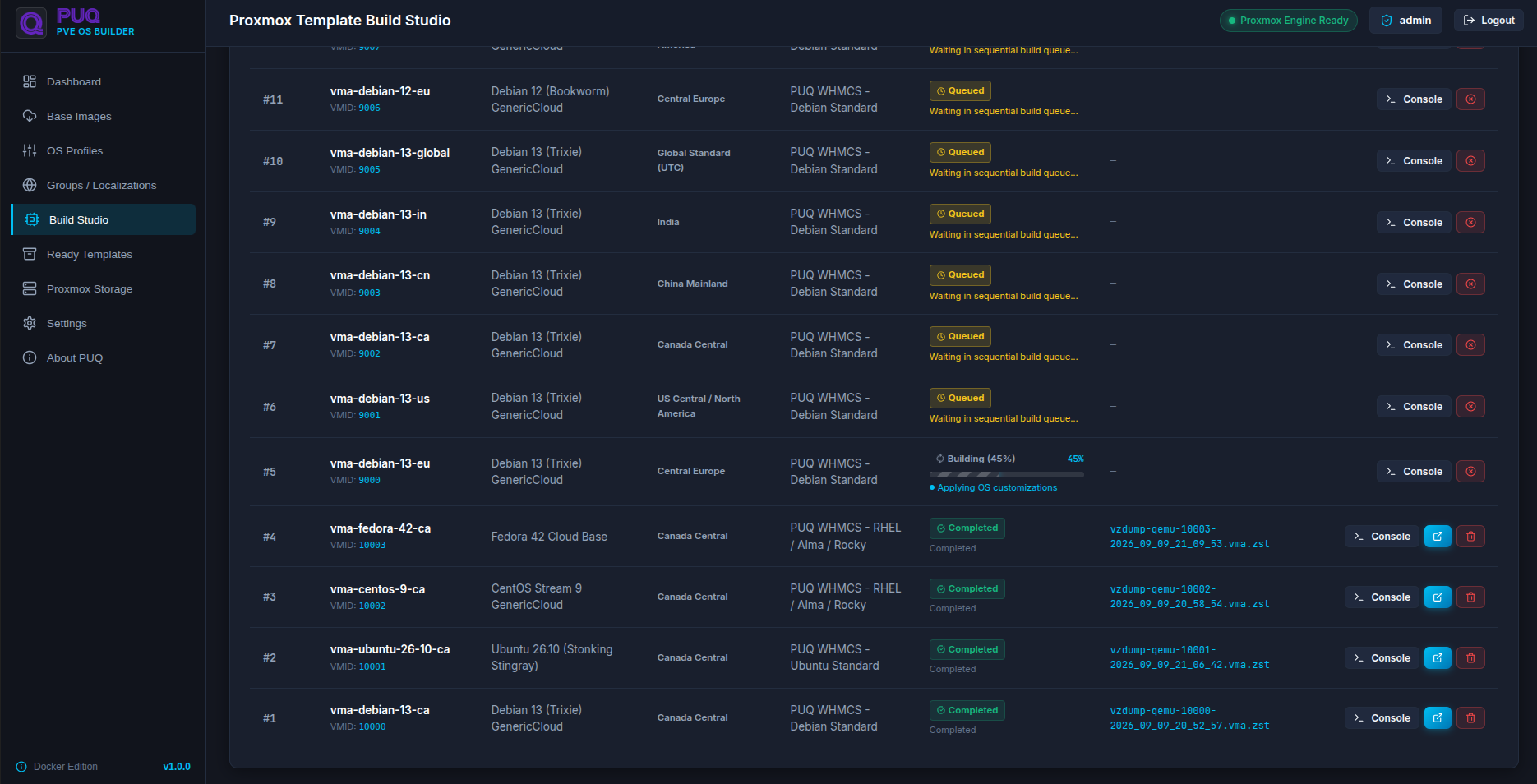
The Build Studio is where the magic happens. You can launch single builds or massive matrix pipelines.
Launching a Build Matrix
Select multiple Base OS Images and multiple Regional Groups. The builder will automatically queue a matrix job (e.g., 5 Images × 6 Groups = 30 Builds) and increment the starting Proxmox VMID automatically.
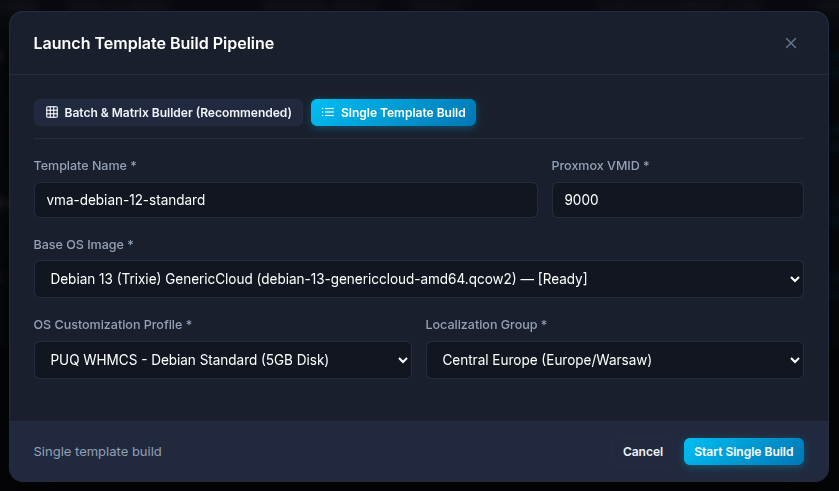
(For manual control, you can also launch a single build):
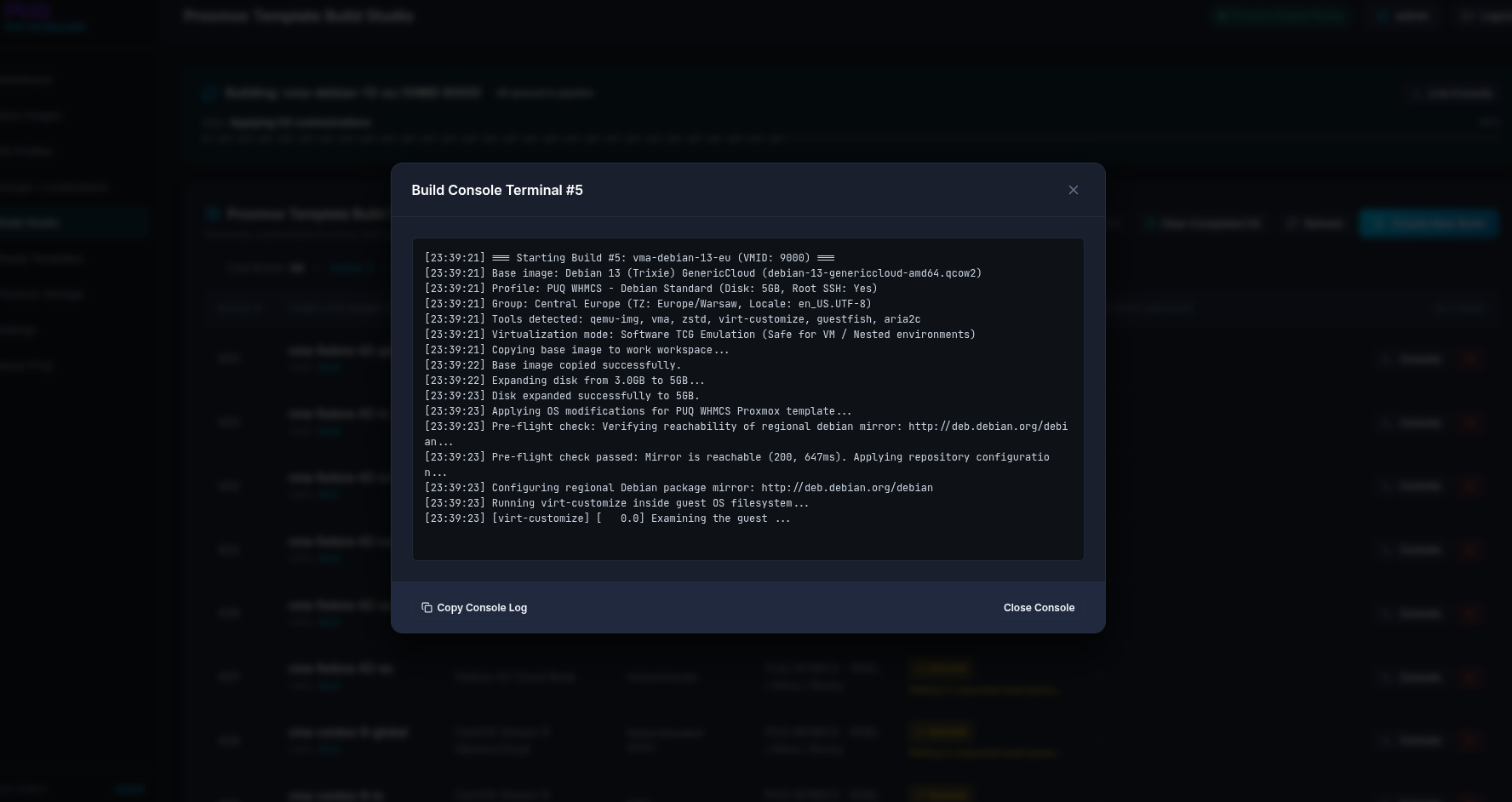
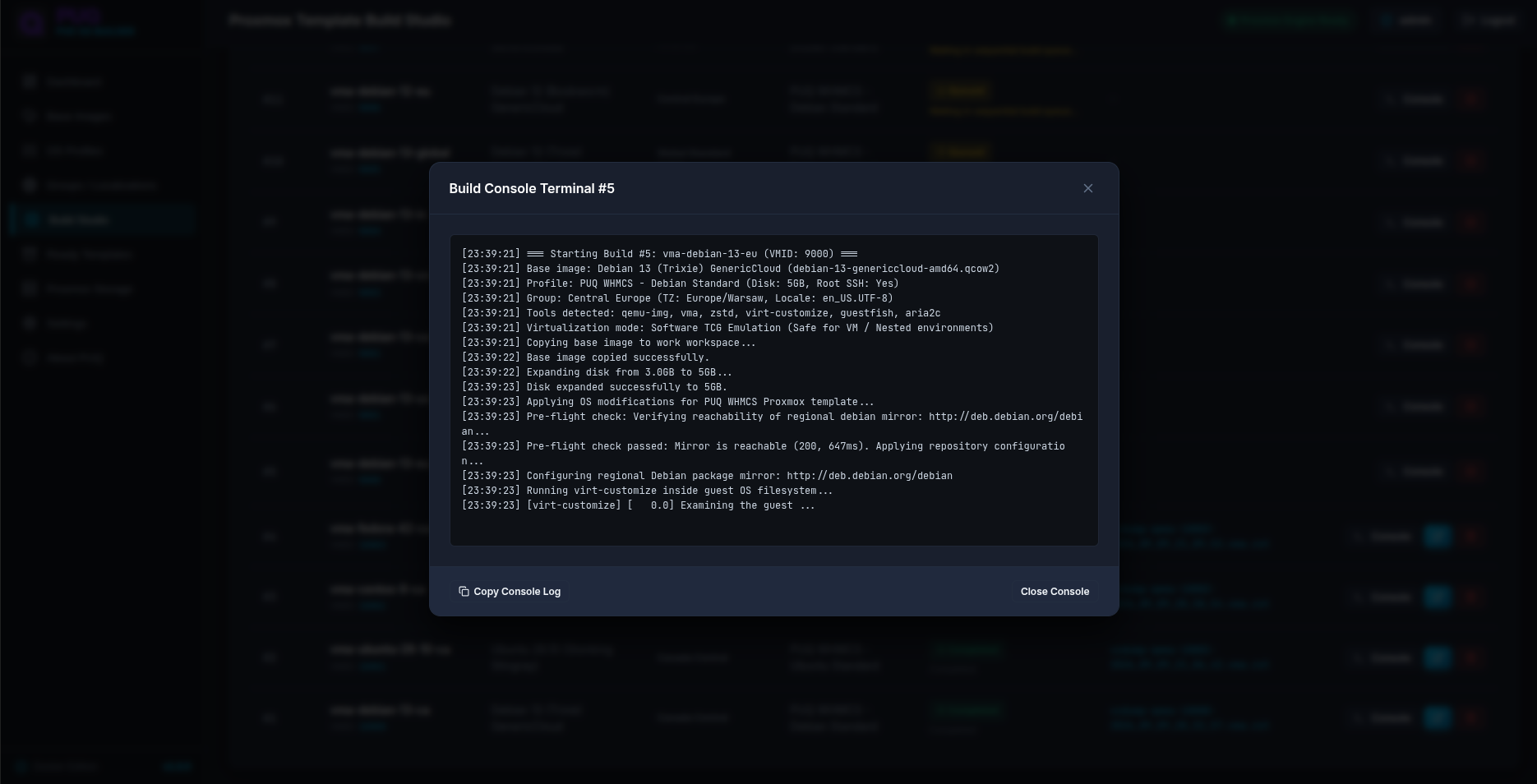
Live Build Console
Monitor the build process in real-time. The builder uses virt-customize and guestfish to inject configurations without booting the OS.
📦 7. Ready Templates & Proxmox Storage
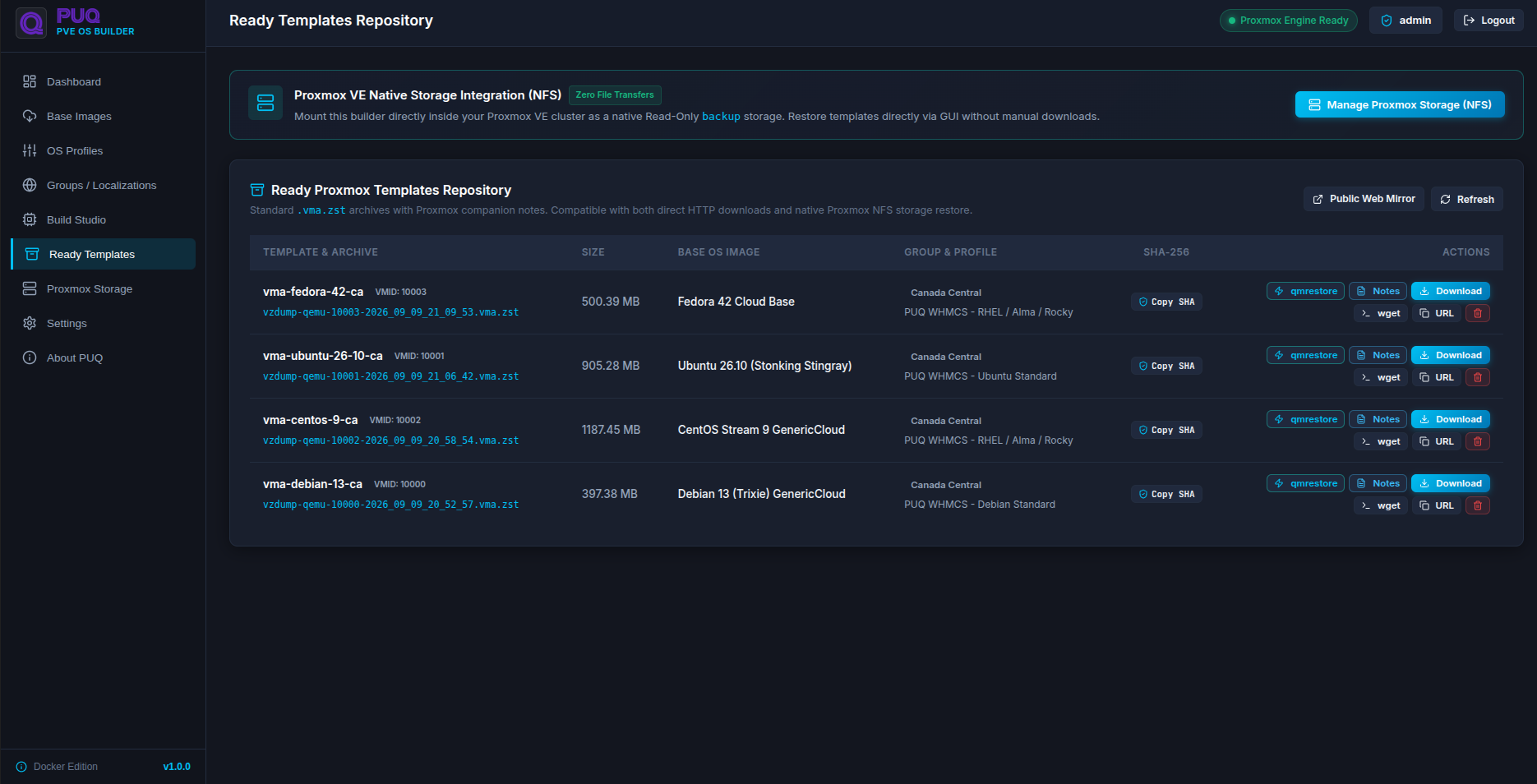
Once builds are complete, they land in the Ready Templates Repository as standard .vma.zst Proxmox archives.
Public Web Mirror
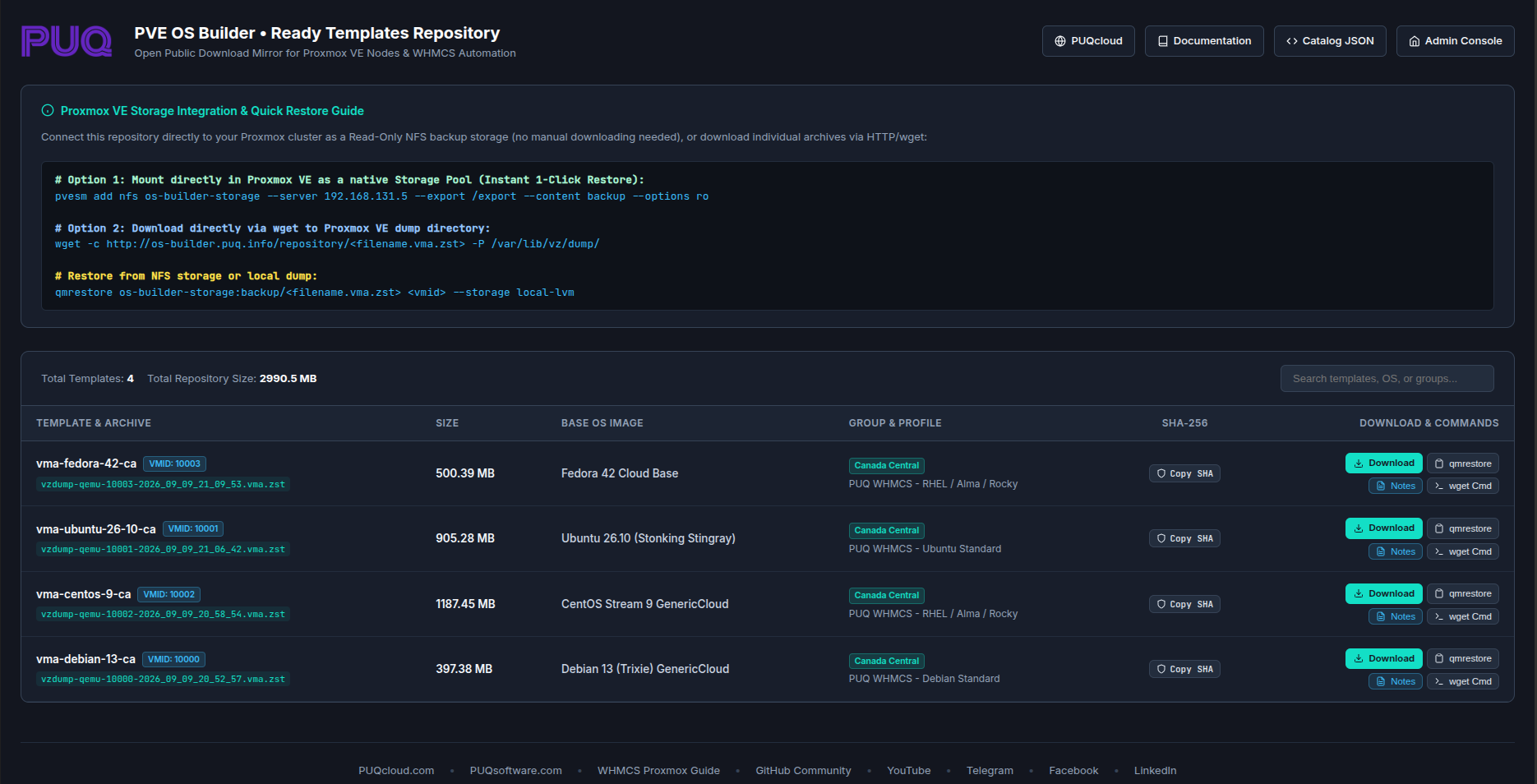
Provide your users or nodes with a read-only HTTP mirror to download templates via wget.
Zero-Download: Proxmox VE Native NFS Storage
For the ultimate workflow, connect your Proxmox VE cluster directly to the container's built-in NFS server.
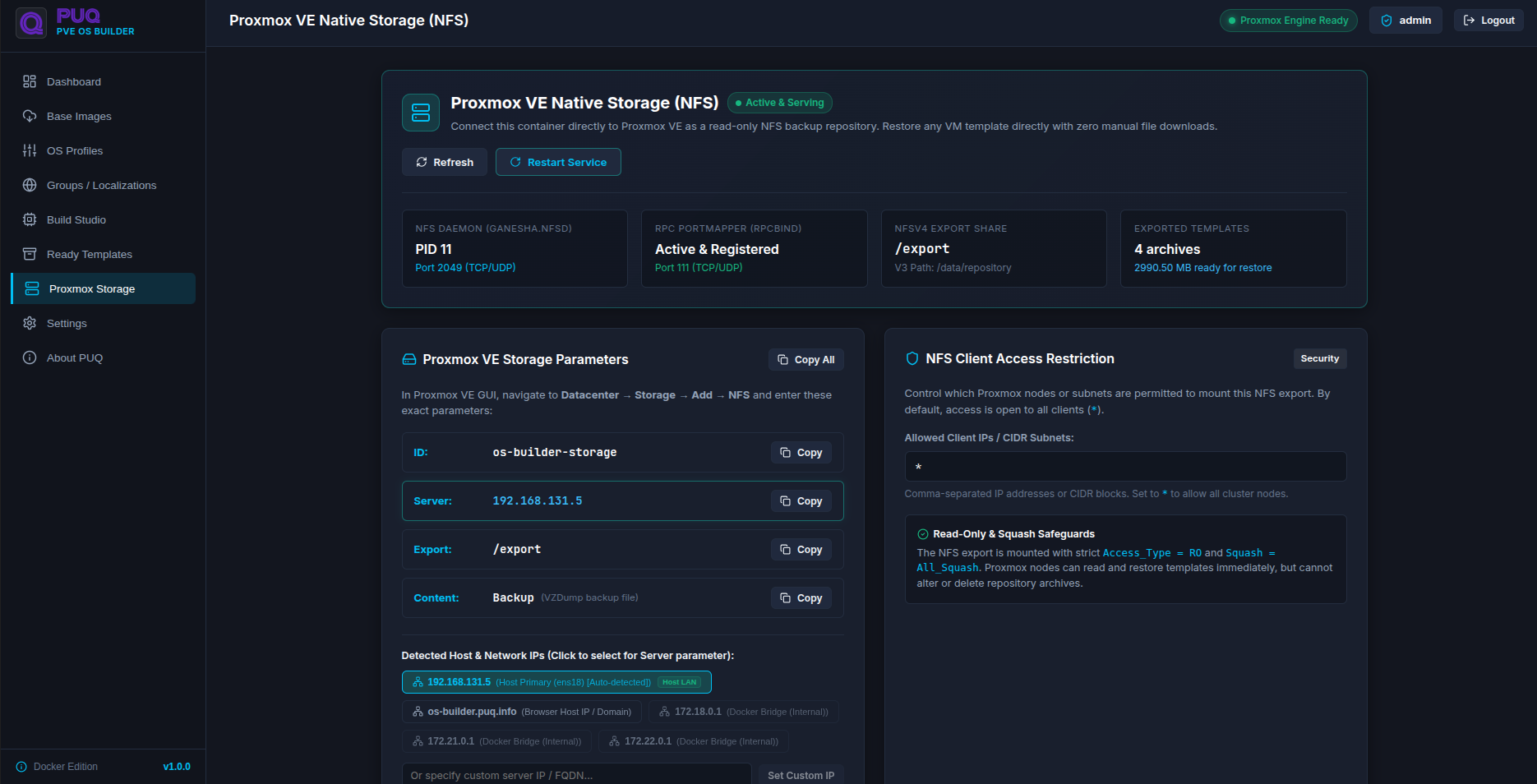
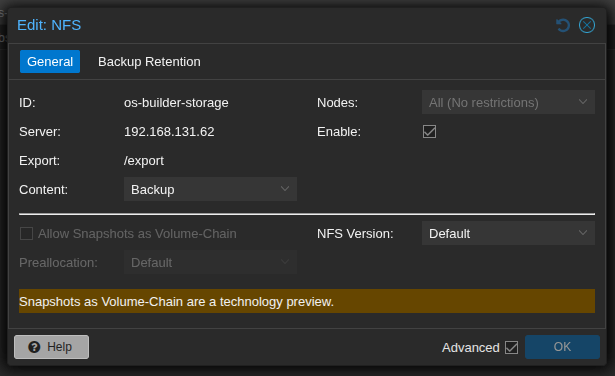
- In Proxmox GUI, go to Datacenter → Storage → Add → NFS.
- Enter the IP Address shown in the dashboard.
- Use
/exportas the Export path. - Select VZDump backup file as the Content type.
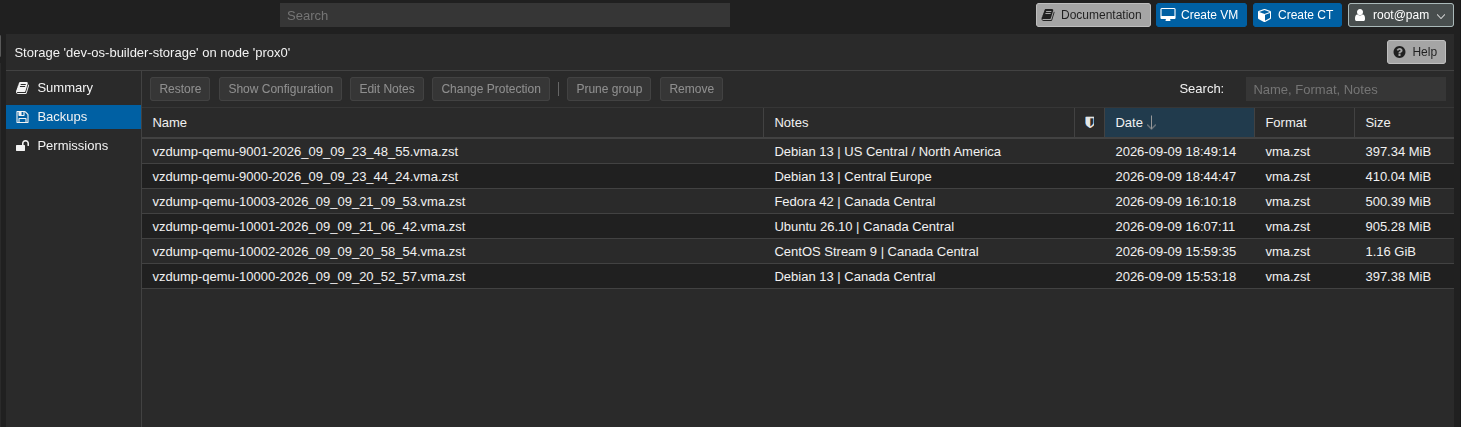
- Your new templates will instantly appear in Proxmox ready for 1-click restore via
qmrestoreor the GUI!
Example: Adding NFS Storage in Proxmox VE
Example: Instant access to Ready Templates inside Proxmox
[!IMPORTANT] For full installation instructions, Docker Compose files, and detailed usage documentation of the builder itself, visit the PUQ PVE OS Builder GitHub Repository.
Manual Template Creation
If you prefer not to use the automated OS Builder, you can create templates manually.
Step 1: Create a Base VM
Create a new VM in Proxmox with your desired operating system. When partitioning the system disk, ensure the root partition is the LAST one in the partition table so that it can be automatically expanded on first boot.
Step 2: Enable Root SSH Access
The module uses the root user to push cloud-init configuration and manage the VM. Enable root login via SSH inside the template:
# /etc/ssh/sshd_config
PermitRootLogin yes
PasswordAuthentication yes

systemctl restart sshd
Step 3: Install Cloud-Init
Install cloud-init together with the growroot and utility packages inside the VM:
# Debian/Ubuntu
apt update && apt install -y cloud-initramfs-growroot cloud-init cloud-utils

# CentOS/RHEL/AlmaLinux
yum install -y cloud-init cloud-utils-growpart

# openSUSE
zypper install cloud-init growpart
cloud-initramfs-growroot/cloud-utils-growpartis what actually expands the root partition to fill the resized disk during deployment. Without it the client VM will boot with the original template disk size.
Step 4: Enable Cloud-Init Services
Cloud-init is split into four systemd services — all of them must be enabled so the VM picks up configuration on every boot:
systemctl enable cloud-init-local.service
systemctl enable cloud-init.service
systemctl enable cloud-config.service
systemctl enable cloud-final.service
Step 5: Clean Up the VM
Before converting to a template, clean up the VM so that every clone starts fresh:
# Remove default users created during OS install (ubuntu, debian, centos, etc.)
# The module creates the user defined in the product configuration.
userdel -r ubuntu 2>/dev/null || true
userdel -r debian 2>/dev/null || true

# Remove SSH host keys (they will be regenerated on first boot)
rm -f /etc/ssh/ssh_host_*

# Clean cloud-init state
cloud-init clean --logs

# Remove machine ID (will be regenerated)
truncate -s 0 /etc/machine-id
rm -f /var/lib/dbus/machine-id
ln -s /etc/machine-id /var/lib/dbus/machine-id

# Clear logs
find /var/log -type f -exec truncate -s 0 {} \;

# Clear bash history
cat /dev/null > ~/.bash_history && history -c
Step 6: Add Cloud-Init Drive
In the Proxmox web UI:
- Select the VM
- Go to Hardware
- Click Add > CloudInit Drive
- Select the storage for the cloud-init drive
Step 7: Convert to Template
In the Proxmox web UI:
- Right-click the VM
- Select Convert to Template
Template Configuration Tips
- Use a unique VMID for each template to avoid conflicts
- Keep templates on shared storage if you have a multi-node cluster, or use local storage with migration enabled in the module settings
-
Install the QEMU Guest Agent (
qemu-guest-agentpackage) for improved VM management and status reporting - Configure serial console if you want noVNC console access to work properly
- Minimize the template disk size — the module can resize disks during deployment, but it cannot shrink them
- Test the template by manually cloning it and verifying that cloud-init applies the configuration correctly
Pre-built Templates
If you don't want to build templates from scratch, PUQcloud publishes two separate sets of ready-made VM templates as Proxmox backup archives (VMA format, .vma.zst):
- Prebuild Proxmox OS templates — custom minimal installations built by PUQcloud from scratch.
- Official cloud images with root access — upstream cloud images (Debian Cloud, Ubuntu Cloud, CentOS GenericCloud) modified so that root SSH login works out of the box.
Both sets are hosted under the same root folder:
Download Prebuild Proxmox OS Templates
Custom PUQcloud builds — 5 GB virtio disk, no swap, minimal install, root SSH enabled, default password puqcloud, timezone Europe/Warsaw.
Debian
Ubuntu
CentOS
Proxmox
Official Cloud Images with Root Access
These are the upstream cloud images from Debian, Ubuntu and CentOS, modified by PUQcloud so that root SSH login is enabled out of the box. Use them if you prefer the official distribution builds over custom ones.
Stock upstream cloud images disable root SSH login by default and create a non-root user (
debian,ubuntu,centos). The module requires therootaccount to push cloud-init configuration and run management commands — that's why the "with root access" variants exist.
Debian
Ubuntu
- Ubuntu 20.04 — ~893 MB
- Ubuntu 22.04 — ~626 MB
- Ubuntu 23.10 — ~731 MB
CentOS
File names may change over time. If a direct link returns 404, open the parent folder on files.puqcloud.com and grab the latest archive for the OS version you need.
Importing a Pre-built Template
- Copy the
.vma.zstfile to your Proxmox node, for example into/var/lib/vz/dump/:cd /var/lib/vz/dump/ wget https://files.puqcloud.com/Proxmox_OS_Templates/Debian/Debian-12/vzdump-qemu-1012-2024_03_23-17_11_11.vma.zst - Restore the backup to a new VMID (pick a free ID, e.g.
9012) and target storage (e.g.local-lvm):
Alternatively, use the Proxmox web UI: Datacenter > Storage > Backups > Restore.qmrestore /var/lib/vz/dump/vzdump-qemu-1012-2024_03_23-17_11_11.vma.zst 9012 --storage local-lvm - Open the restored VM, change the default root password (
puqcloudfor the prebuild set), verify the cloud-init drive is present, then right-click the VM and choose Convert to Template.
Disclaimer: Your use of these operating systems is at your own risk. PUQcloud does not guarantee the correct operation or security of the pre-built templates or the root-access cloud images. Always review, update and harden them before offering to clients.
Supported Operating Systems
The module supports any operating system that Proxmox can run as a KVM virtual machine, provided it has working cloud-init (or cloudbase-init on Windows). Tested and known to work:
- Linux: Debian, Ubuntu, CentOS, AlmaLinux, Rocky Linux, openSUSE, Proxmox Backup Server
-
Windows: Server / Desktop editions with
cloudbase-initinstalled
Configuring Templates in WHMCS
Templates are selected in the product configuration under the Module Settings tab. You can also offer multiple templates to clients via Configurable Options, allowing them to choose their preferred operating system during order.