Mini Menu
PUQ Page Manager module WHMCS
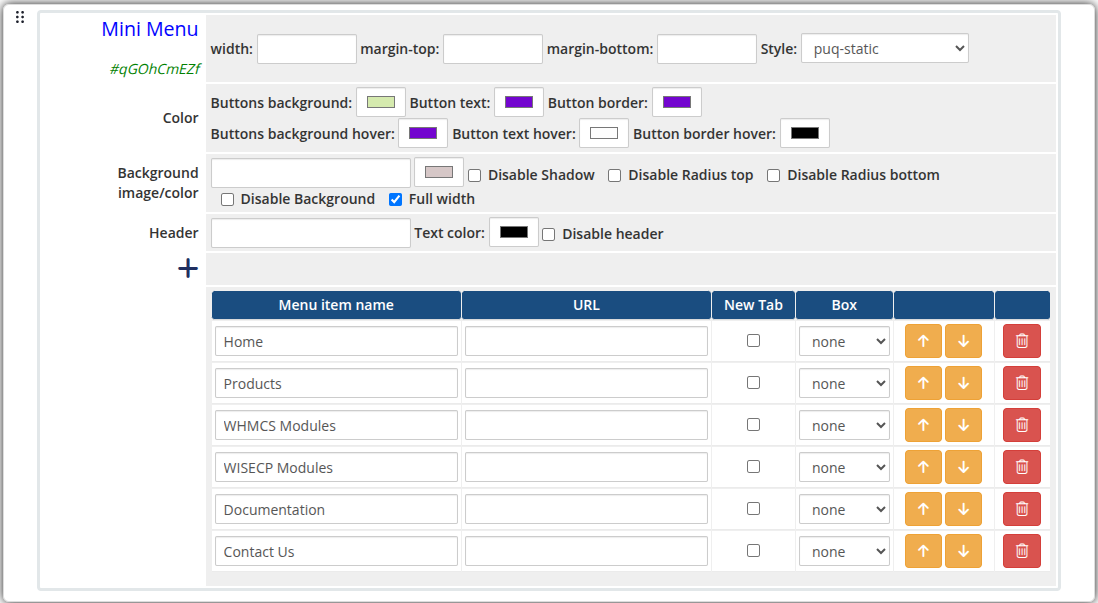
Admin View
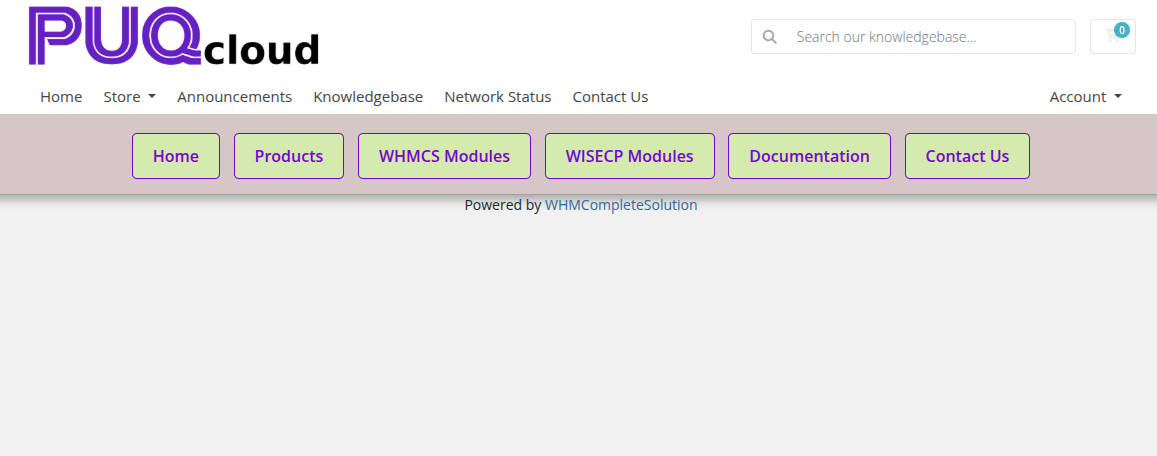
Frontend View
Styles
3 style templates are available: puq (default), puq-bottom, puq-static.
Settings
Layout
| Setting |
Description |
| width |
Widget container width (e.g. 100%, 800px) |
| margin-top |
Top margin of the widget block |
| margin-bottom |
Bottom margin of the widget block |
| Style |
Visual style template (puq, puq-bottom, puq-static) |
Colors
| Setting |
Description |
Buttons background (color_1) |
Background color of the menu buttons |
Button text (color_2) |
Text color of the menu buttons |
Button border (color_3) |
Border color of the menu buttons |
Buttons background hover (color_4) |
Background color on hover |
Button text hover (color_5) |
Text color on hover |
Button border hover (color_6) |
Border color on hover |
Background
| Setting |
Description |
| Background image |
URL of the background image for the widget container |
| Background color |
Background color of the widget container |
| Disable Shadow |
Remove the drop shadow from the widget container |
| Disable Radius top |
Remove top corner rounding |
| Disable Radius bottom |
Remove bottom corner rounding |
| Disable Background |
Remove the background panel entirely |
| Full width |
Stretch the widget to the full page width |
| Setting |
Description |
| Header |
Optional heading text displayed above the menu |
| Text color |
Color of the header text |
| Disable header |
Hide the header text |
| Field |
Description |
| Menu item name |
Display label for the navigation link |
| URL |
Destination URL for the link |
| New Tab |
Open the link in a new browser tab when checked |
| Box |
Display style variant for the individual button |
Use the + button to add new menu items. Items can be reordered with the up/down arrows and removed with the delete button.
 Skip to main content
 mini-menu-admin.png
 mini-menu-frontend.png