 Skip to main content
Settings
PUQ Page Manager module WHMCS
Order now | Download | Community
The Settings page allows you to configure page rewrites, import/export pages, and customize the password protection page appearance.
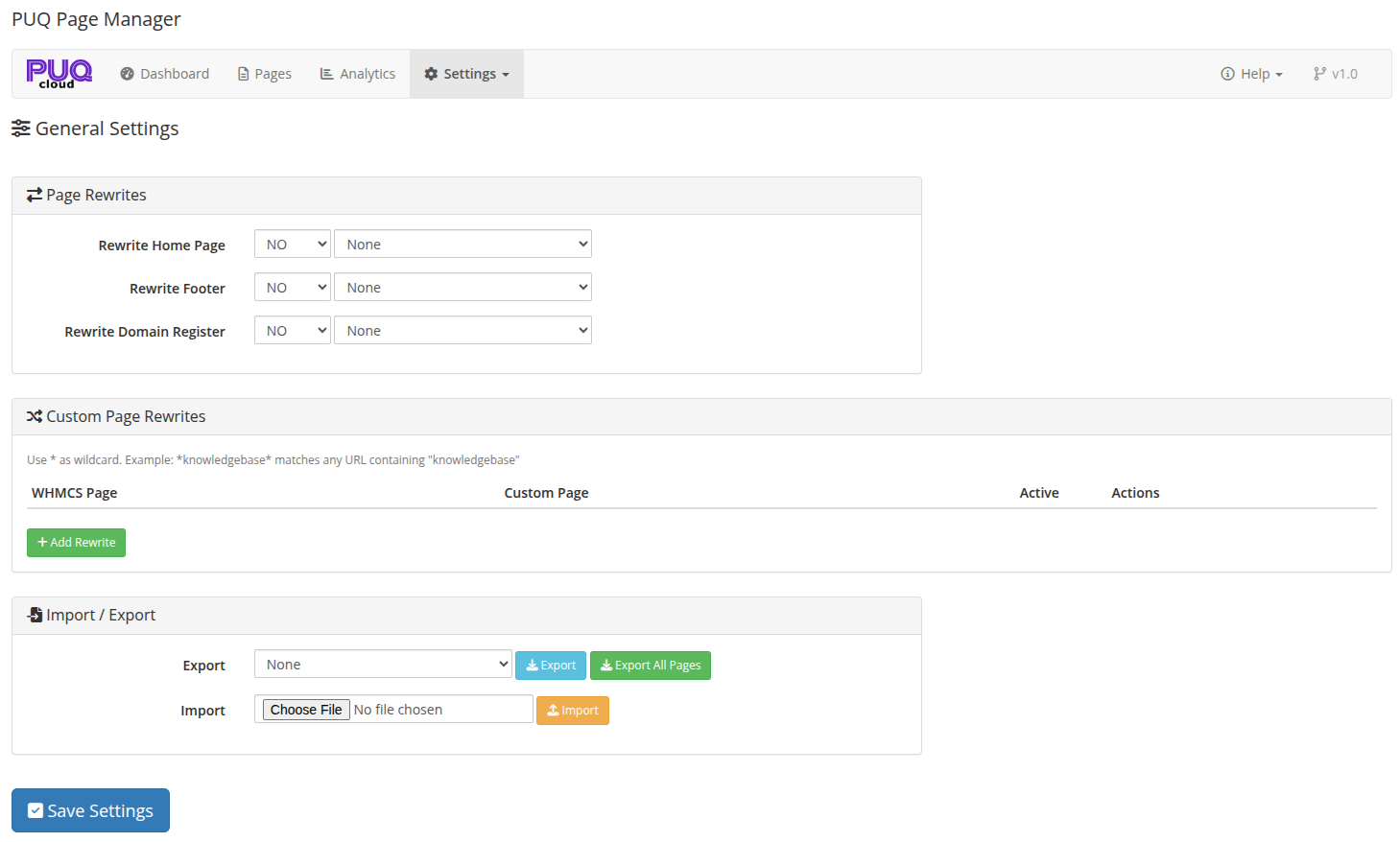 05-settings.png
Page Rewrites
Page rewrites allow you to replace standard WHMCS pages with your custom pages.
Built-in Rewrites
| Rewrite | Description |
|---|---|
| Rewrite Home Page | Replace the WHMCS home page with a custom page |
| Rewrite Footer | Replace the WHMCS footer with a custom page |
| Rewrite Domain Register | Replace the domain registration page with a custom page |
Each rewrite has a YES/NO toggle and a page selector dropdown.
Custom Page Rewrites
You can create custom rewrites to replace any WHMCS page URL with your custom page.
Click + Add Rewrite to add a new rule. Each rule has:
| Field | Description |
|---|---|
| WHMCS Page | The URL pattern to match (supports * wildcard) |
| Custom Page | The page to display instead |
| Active | Enable or disable the rewrite |
Note: Use
*as a wildcard. Example:*knowledgebase*matches any URL containing "knowledgebase".
Import / Export
| Action | Description |
|---|---|
| Export | Select a page from the dropdown and click "Export" to download it as a JSON file |
| Export All Pages | Export all pages as a single JSON archive |
| Import | Upload a JSON file to import a page |
Password Page Appearance
Customize the look and feel of the password protection page that visitors see when accessing a password-protected page.
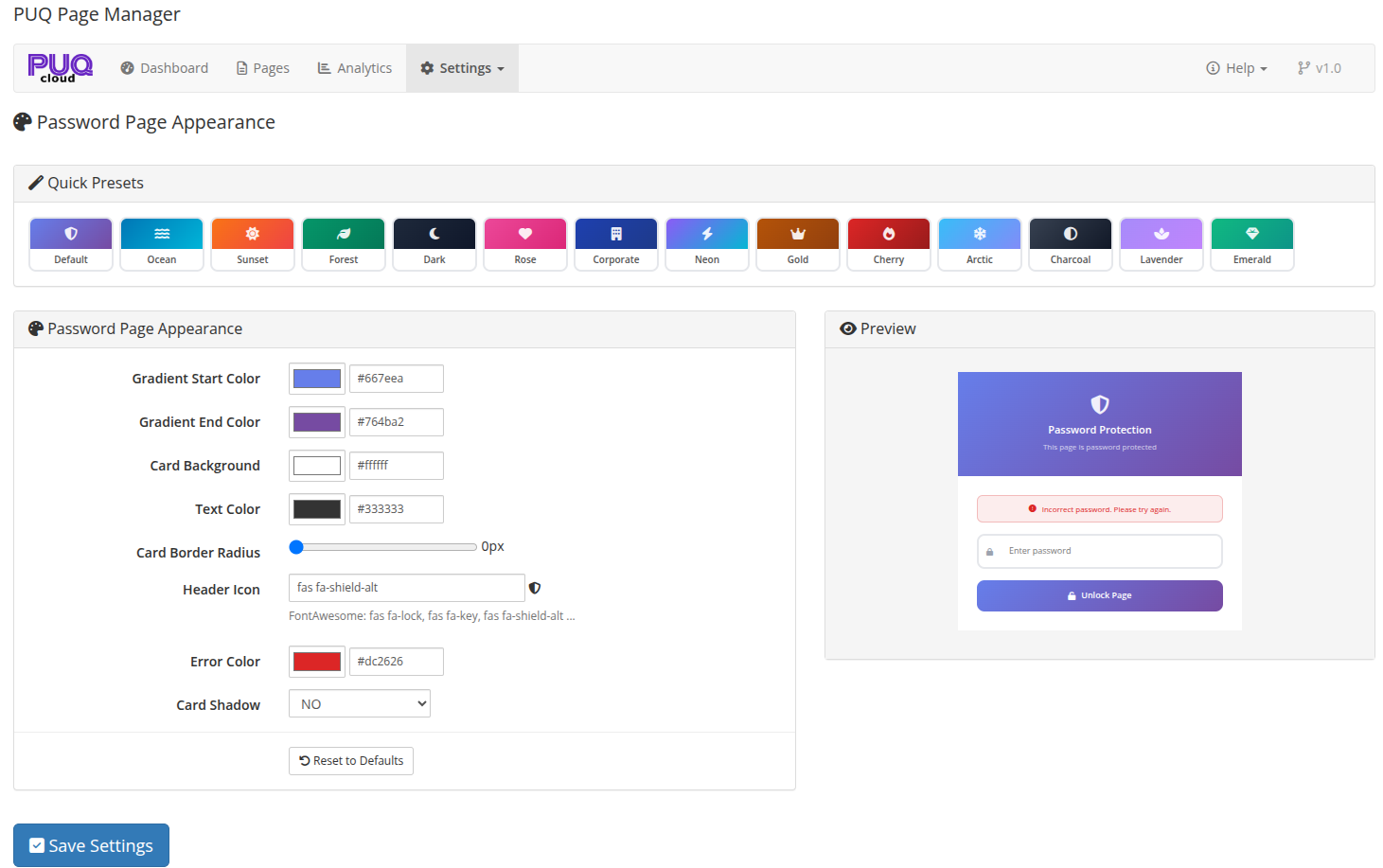 06-settings-password-appearance.png
Quick Presets
Choose from built-in color presets to quickly style the password page: Default, Ocean, Sunset, Forest, Dark, Rose, Corporate, Neon, Gold, Cherry, Arctic, Charcoal, Lavender, Emerald.
Customization Options
| Setting | Description |
|---|---|
| Gradient Start Color | Start color of the background gradient |
| Gradient End Color | End color of the background gradient |
| Card Background | Background color of the password card |
| Text Color | Color of the text on the card |
| Card Border Radius | Corner rounding of the card (in pixels) |
| Header Icon | FontAwesome icon class displayed at the top of the card |
| Error Color | Color of the error message when an incorrect password is entered |
| Card Shadow | Enable or disable the card drop shadow |
A live preview on the right side of the settings shows how the password page will look in real time as you adjust the settings.
Click Reset to Defaults to restore the default appearance settings.